

Introduction
A Gmail to Outlook migration is a platform change, not a simple export. IT teams must move mailbox history into Exchange Online, decide how Gmail labels become Outlook folders, and bring contacts, calendars, and attachments along when they are in scope. Multi-label messages need an explicit mapping rule, because Outlook folders hold a message in one place at a time.
Clear planning reduces empty folders after go-live, missed recent mail, and last-minute cutover confusion. Admins get time to compare sample mailboxes, fix mapping mistakes, and confirm Delta Sync before users make Outlook their daily client.
This guide covers what can transfer, how the two mail models differ, readiness work, the Gmail to Outlook migration solution workflow in Data Relocate, and the checks to run after the first pass.
Which Gmail Mailbox items transfer to Outlook?
Lock the migration scope before the first job. Support varies by Google Workspace versus consumer Gmail and by what your Statement of Work includes.
| Gmail item | Migrated to Outlook | Notes for IT |
|---|---|---|
| Inbox, Sent, Drafts | Yes | Mapped to Outlook system folders |
| Trash / Spam | Yes | Mapped to Deleted Items and Junk |
| Labels | Yes | Converted to Outlook folders (nested where supported) |
| Attachments | Yes | Kept with the original message; oversized or blocked items are reported |
| Timestamps | Yes | Original sent/received time retained where supported |
| Read / unread | Yes | State mirrored in Outlook where supported |
| Starred | Yes | Gmail stars map to Outlook flags where supported |
| Threads | Yes | Conversation grouping follows Outlook conversation settings |
| Contacts | Yes | Land in Outlook / Exchange contacts when scoped |
| Calendars (including recurring) | Yes | Validate exceptions after migration |
| Shared / delegated mailboxes | Yes | Design the Microsoft equivalent before mapping |
| Filters | Yes | Validate Outlook inbox rules after cutover |
| Signatures | Not migrated | Rebuild in Outlook; confirm in the SOW |
How Gmail and Outlook organize mail differently
Learn and Understand the technical differences of Gmail and Outlook.
| Area | Gmail / Google Workspace | Outlook / Microsoft 365 |
|---|---|---|
| Mail organization | Labels (one message can have several labels) | Exclusive folders |
| Nested structure | Label path such as `Customers / Customer A` | Folder path such as `Customers → Customer A` |
| Filters | Gmail filters | Rebuild as Outlook inbox rules after cutover |
| Stars / importance | Stars and Important | Flags and Follow Up |
| Signatures | Gmail signatures | Rebuild in Outlook |
| Calendar | Google Calendar | Outlook Calendar |
| Contacts | Google Contacts | Outlook contacts and GAL |
| Admin console | Google Admin console | Microsoft 365 Admin Center |
| Collaboration | Drive, Meet, Chat | Teams, SharePoint, OneDrive |
| Compliance / policy settings | Google Admin policies | Redesign in Microsoft 365 (settings do not transfer automatically) |
A message with several Gmail labels cannot keep every label as a separate Outlook folder without duplication or a primary-folder rule. Record filters and signatures that must be rebuilt, and pilot label-to-folder mapping on a small user set before company-wide waves.
What teams gain after moving mail to Outlook
Moving mailboxes into Microsoft 365 can simplify day-to-day email work when the project is scoped and staged correctly.
Key outcomes include:
- One admin surface for mail – Manage Outlook users, groups, and mail security from the Microsoft 365 Admin Center.
- Tighter Microsoft 365 collaboration – Outlook sits with Teams, OneDrive, SharePoint, and Calendar under one identity.
- Desktop and mobile Outlook clients – Staff can use Outlook on Windows, Mac, web, and mobile instead of Gmail alone.
- Policy alignment – Place mail under Exchange Online and Microsoft 365 controls your security team already runs.
- Familiar Outlook productivity tools – Search, folders, rules, and Focused Inbox support post-cutover habits.
- Copilot where licensed – Eligible plans can use Copilot drafting and summarization in Outlook.
- Cloud mail at scale – Grow with Microsoft 365 without operating your own mail servers.
- A single primary mailbox product – Standardize on Outlook when that is the organizational goal.
- Staged transfer with less disruption – One-Time Migration → Delta Sync → Validation → Cutover.
- Clearer project visibility – Migration Insights, reports, and batch status help IT track each wave.
Migration risks to plan for before cutover
| Risk to watch | How to handle it |
|---|---|
| Oversized mailboxes stretch job runtime | Clean up before go-live and migrate in sized batches |
| Labels land incorrectly as folders | Pilot label-to-folder mapping on representative users |
| Multi-label mail needs a single folder home | Agree primary-folder rules and validate in the pilot |
| Contacts or calendars missing after go-live | Keep them in SOW scope and check recurring events |
| Wrong source-target user pairs | Review CSV or auto-mapped pairs before the first job |
| Shared or delegated mailboxes are unclear | Define the Microsoft 365 design first; migrate them as their own scope |
| New mail arrives during the first pass | Follow One-Time Migration with Delta Sync, then a planned cutover |
| Filters and signatures do not appear in Outlook | Inventory them early and recreate as rules and signatures |
| Auth or access gaps during the job | Prefer OAuth where supported and retain migration reports |
IT readiness checklist before you start
Work through these items with your Google and Microsoft admins before production waves. Finishing them early keeps the first job from stalling on access, licensing, or unclear scope.
Confirm admin rights on both clouds
Make sure Google Workspace admins can authorize mailbox access for migration, and Microsoft 365 admins can create or manage target users and approve the connector. Complete accounts, roles, and API access before migration day-not during the first job.
Provision Microsoft 365 mailboxes
Every in-scope person needs a ready target mailbox:
- Active Microsoft 365 user
- Exchange Online / Outlook mailbox turned on
- Target address that matches your mapping file
- Correct license applied
- Mailbox able to receive migrated items
Publish the Gmail-to-Outlook address map before jobs start.
Decide what leaves Gmail
Write down the inventory for each mailbox wave:
- How many users and how large the mailboxes are
- Inbox, Sent, drafts, labels, and archives in scope
- Attachments, contacts, and calendars
- Shared or delegated mailboxes
- Items that must not be left behind
If a Gmail feature has no Outlook twin, mark it out of scope or schedule a rebuild after cutover.
Map labels to folders deliberately
Walk the label tree and choose the Outlook folder layout. Example: Gmail `Customers / ABC Corporation` becomes Outlook `Customers → ABC Corporation`. For messages with several labels, pick the primary folder rule. Prove the mapping on a pilot group before you scale.
Inventory people and calendar data
When contacts and calendars are included:
- Personal contacts and groups
- Personal and shared calendars
- Recurring series and meeting invites
- Who owns each calendar and who needs share access
Schedule a focused check on recurring series after the first pass.
Capture filters, stars, and signatures to rebuild
List Gmail filters, stars, signatures, forwarding, and delegation habits people depend on. Plan Outlook rules and signatures for the ones that matter-most will not travel automatically.
Finish OAuth on source and target
Complete Google and Microsoft authorization ahead of the cutover window. Spot-check access on a few real mailboxes so the production wave does not fail on auth.
Design batch waves and a pilot
Split users by team, site, mailbox size, or risk. Run a pilot that mixes ordinary and complex mailboxes, then expand only after that wave looks clean.
Schedule Delta Sync and cutover
People can keep using Gmail during the first pass. Sequence the project as:
One-Time Migration → Delta Sync → Validation → Final Delta Sync → Cutover
Publish the moment Gmail stops being primary and Outlook becomes the daily client.
Plan MX and DNS if delivery moves
When Microsoft 365 becomes the mail host, prepare MX and related DNS changes. Test the routing plan before the production cutover where you can.
Agree how you will sign off each batch
Do not treat “job completed” as enough. Define checks for counts, recent and older mail, attachments, label-to-folder results, contacts, calendars, and failed items. Keep a short sign-off list per wave.
Data Relocate capabilities for Gmail to Outlook
The Gmail to Outlook migration solution covers the scopes below when they are in your Statement of Work (SOW). Confirm path-specific support before production.
| Features | Supported |
|---|---|
| Inbox, Sent, Drafts, Trash, and Spam | Yes* |
| Read / unread status | Yes* |
| Timestamps | Yes* |
| Labels mapped to folders | Yes* |
| Mail attachments | Yes* |
| Contacts and calendars | Yes* |
| Shared mailboxes | Yes* |
| Gmail signatures | Yes* |
| Gmail filters | Yes* |
Step-by-step: Run Gmail to Outlook in Data Relocate
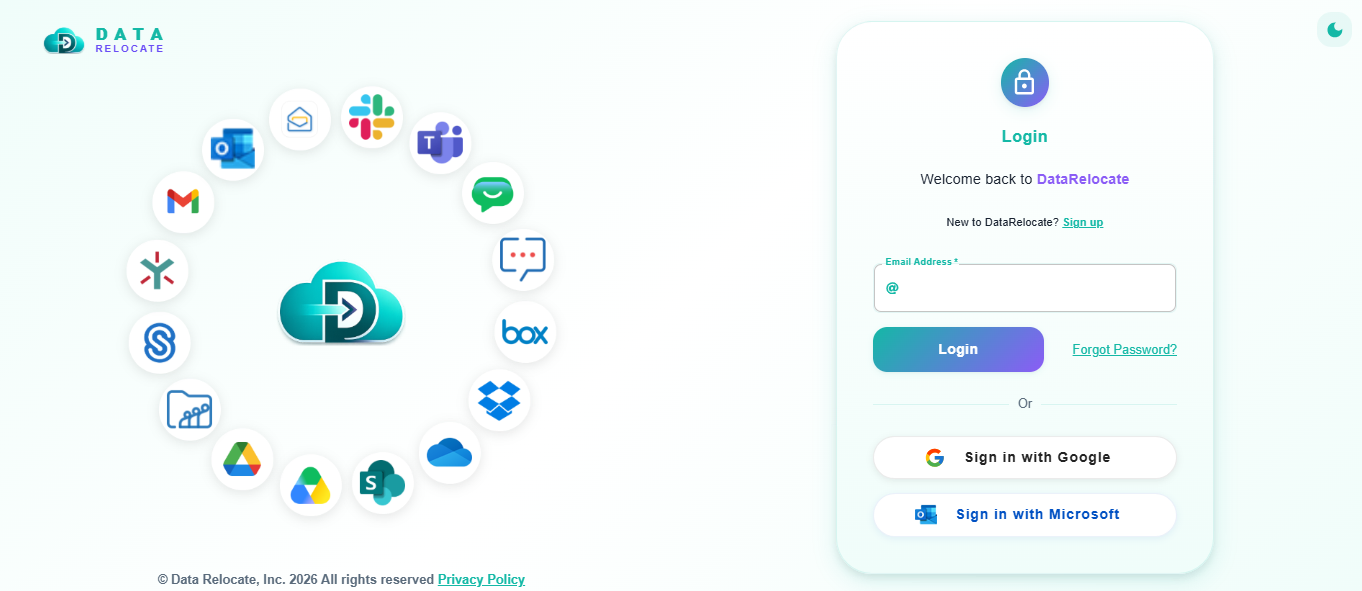
Step 1: Log into Data Relocate
Sign up or log into Data Relocate. Request a quote from Pricing and get a Statement of Work (SOW) for Gmail to Outlook migration.
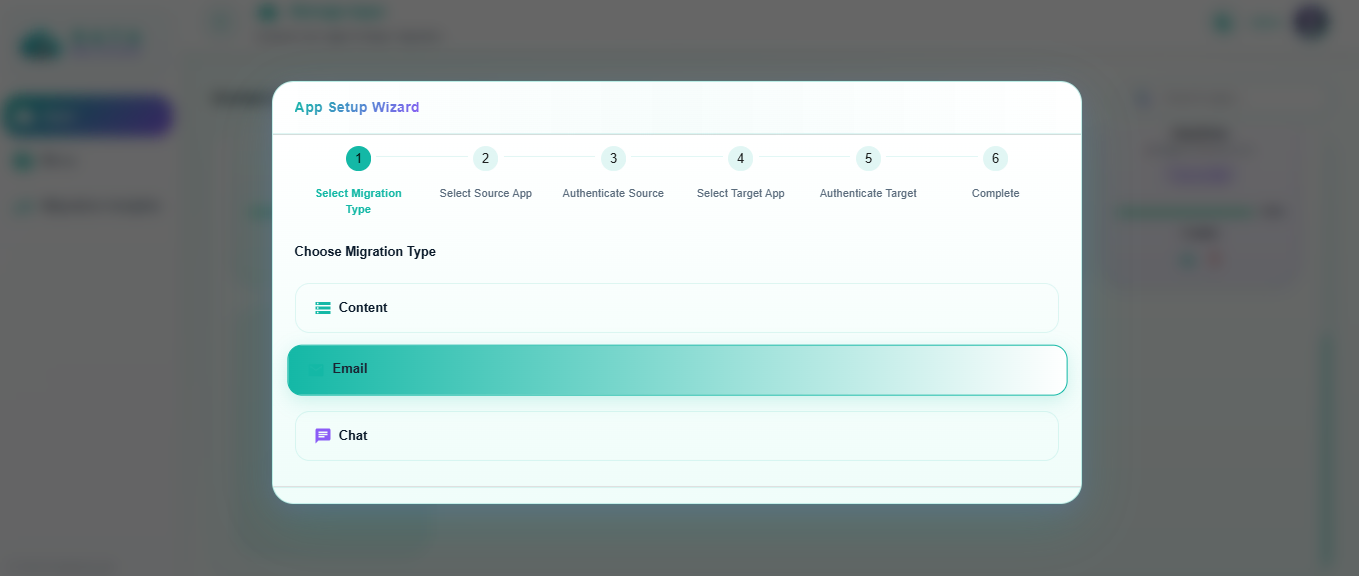
Step 2: Select migration type
Choose Email as the migration type for Gmail to Outlook.
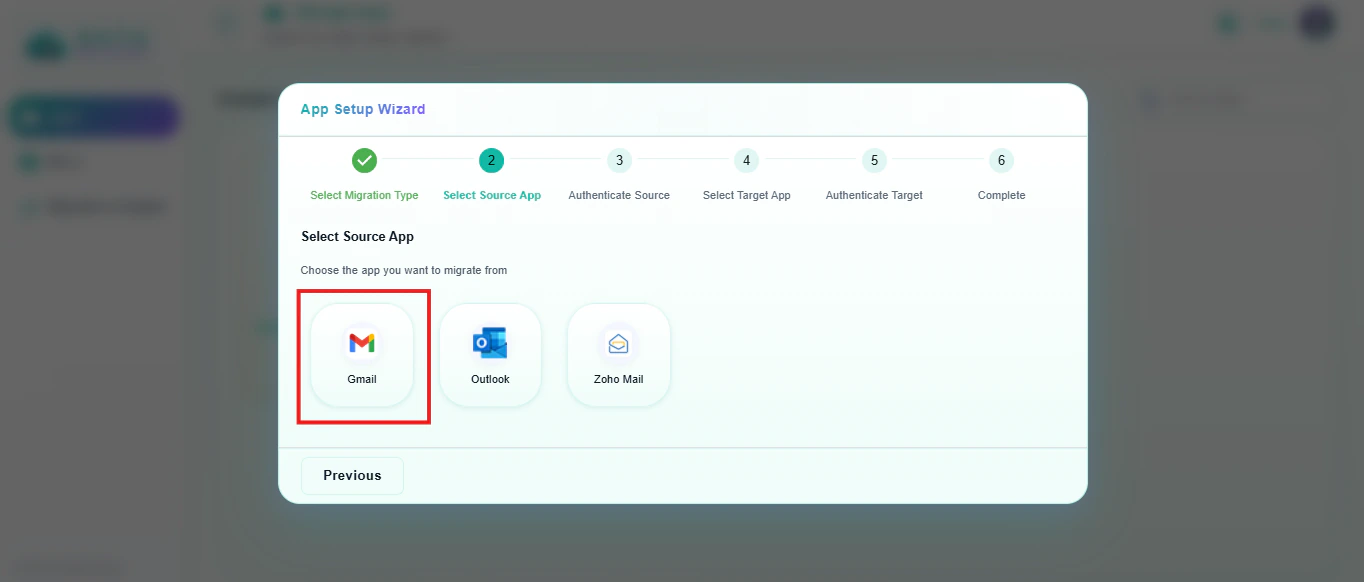
Step 3: Add Gmail as the source
Select Gmail / Google Workspace as the source app and start authentication.
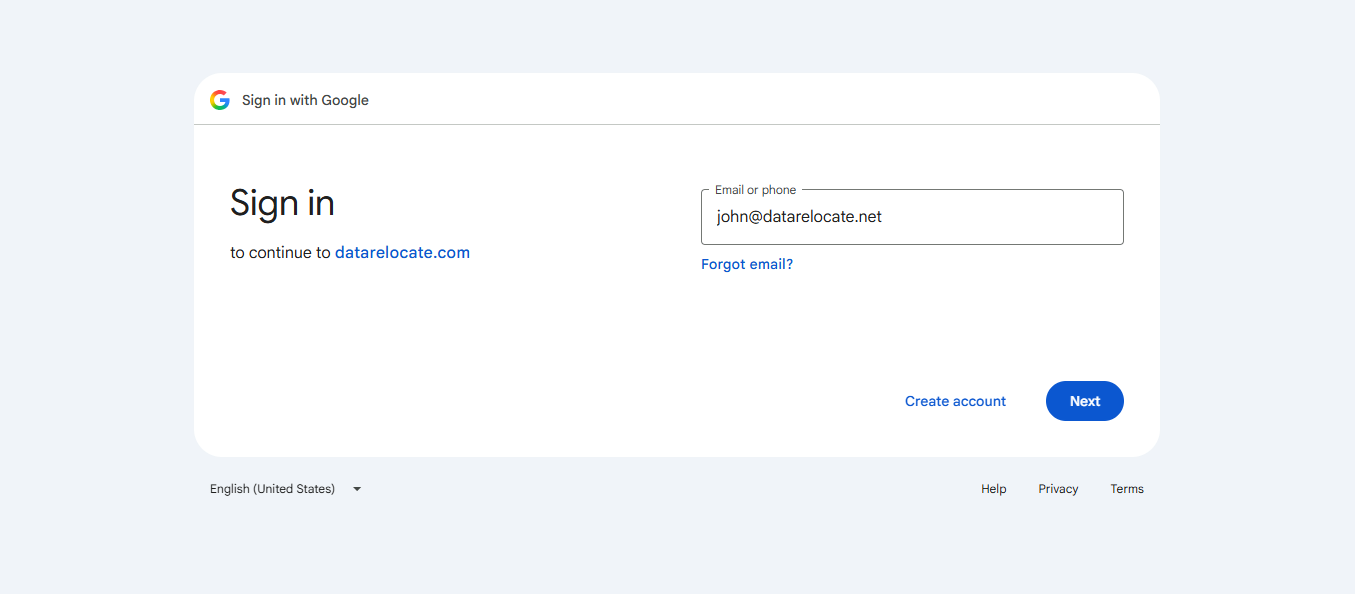
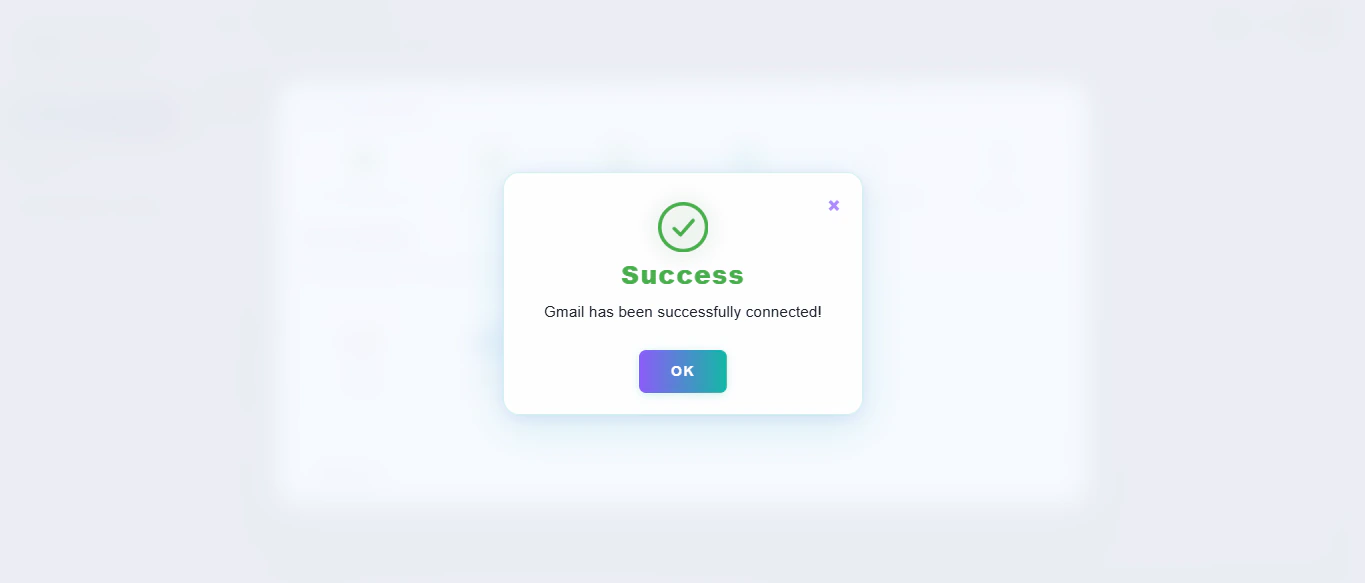
Step 4: Authenticate Gmail
Complete OAuth for the Google Workspace cloud. Data Relocate authorizes access without storing user passwords.
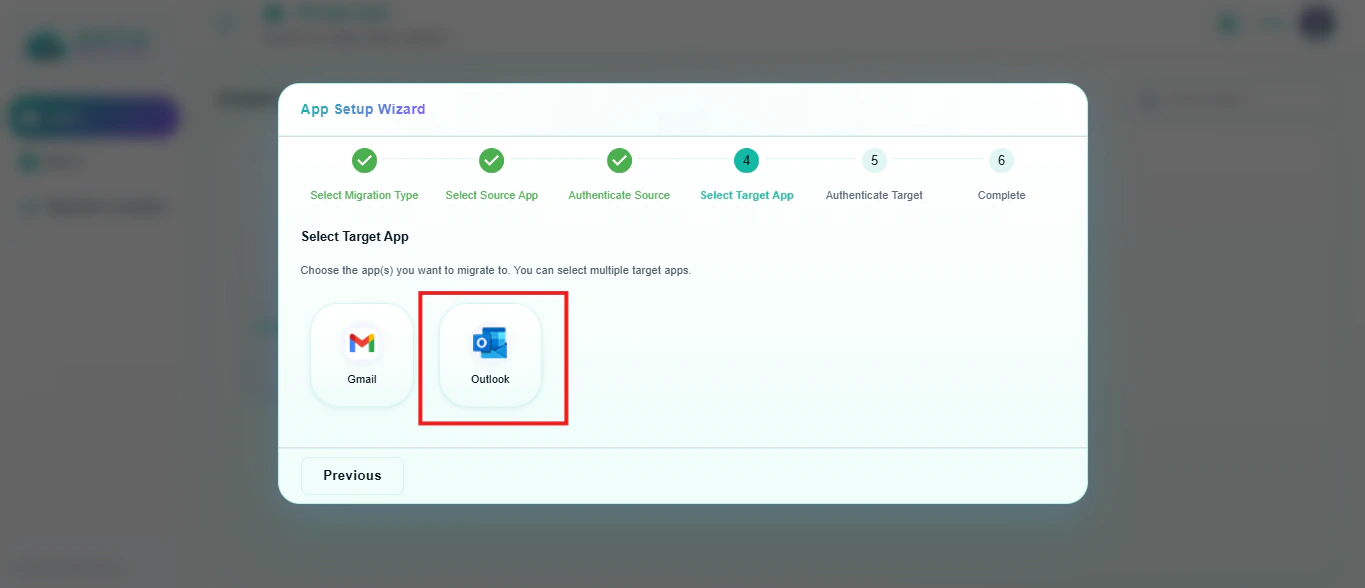
Step 5: Add Outlook as the target
Select Outlook / Microsoft 365 as the target and start authentication.
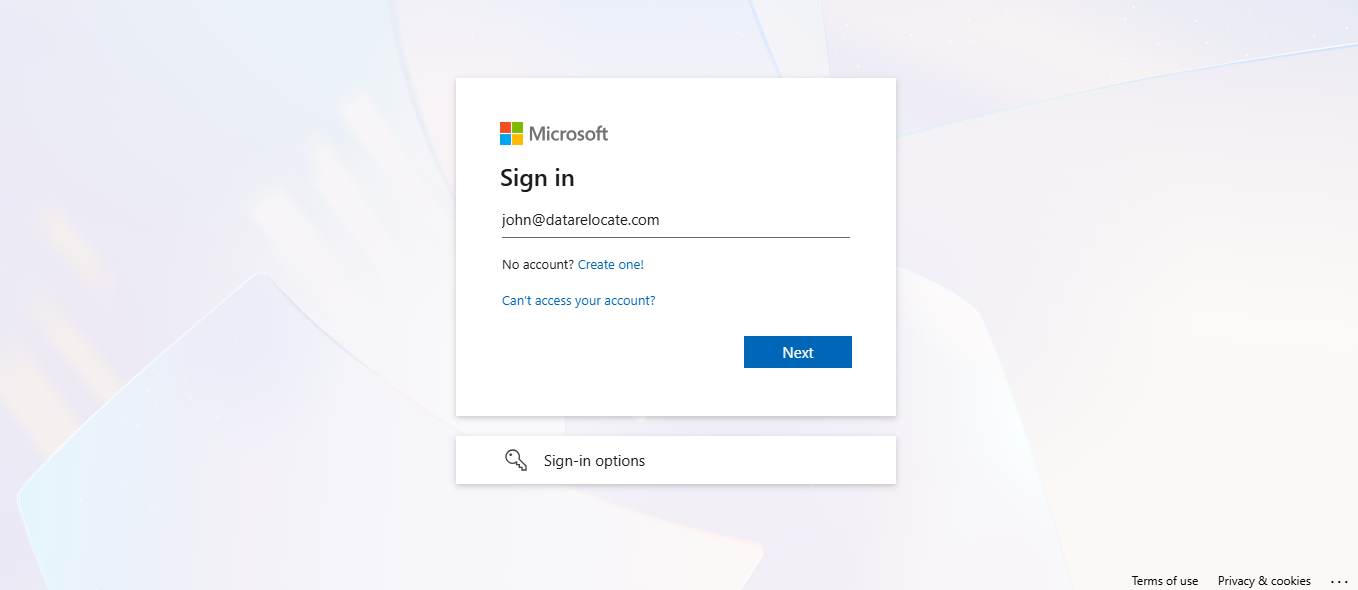
Step 6: Authenticate Outlook
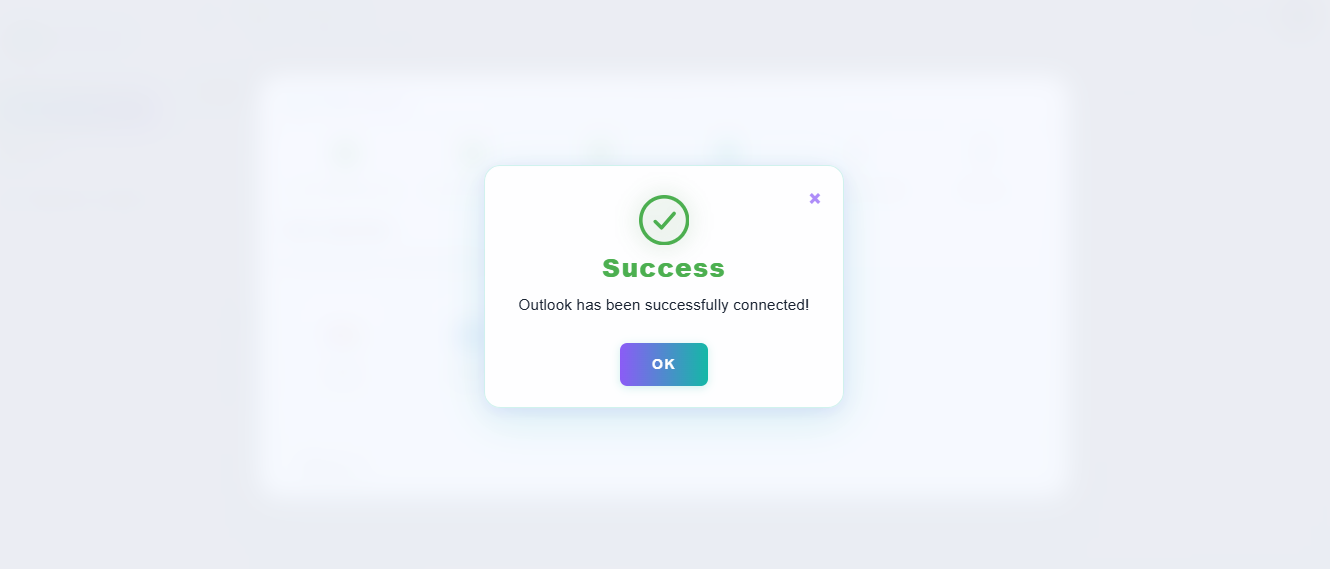
Finish target OAuth for Outlook / Microsoft 365. Confirm both clouds are connected before you continue.
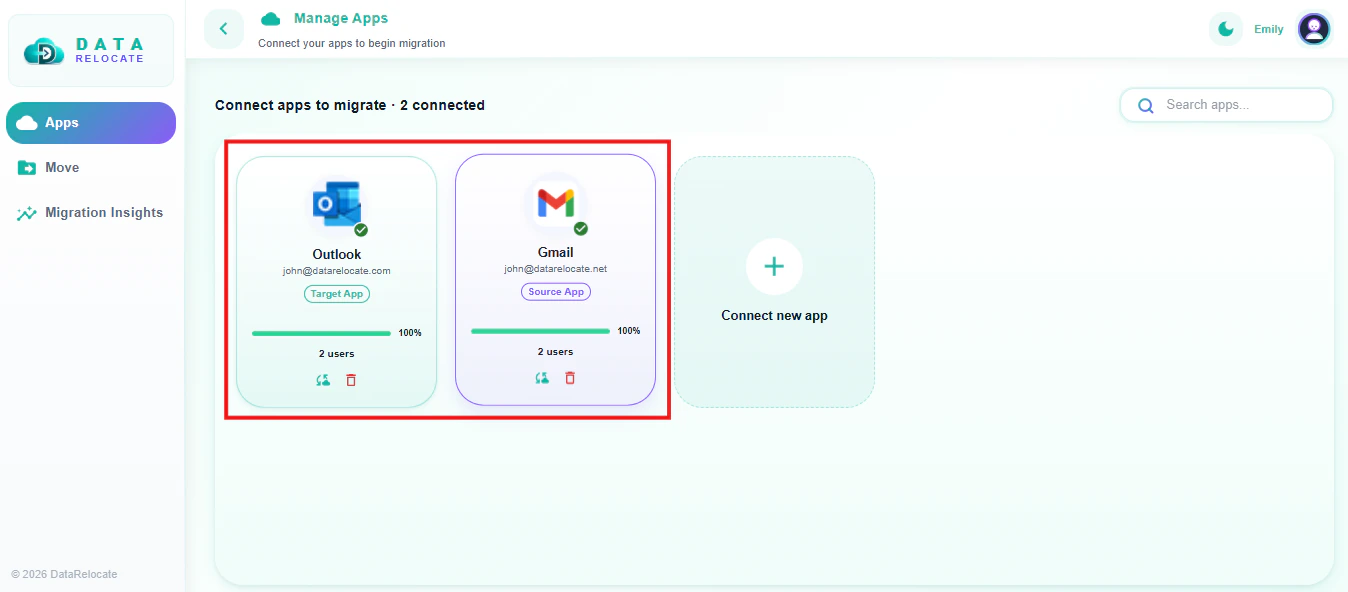
Step 7: Select Gmail as source and Outlook as target
After both clouds are authorized, set Gmail as the source and Outlook as the target for this migration job. Confirm the pair matches your SOW before you map users.
Step 8: Map source and target pairs
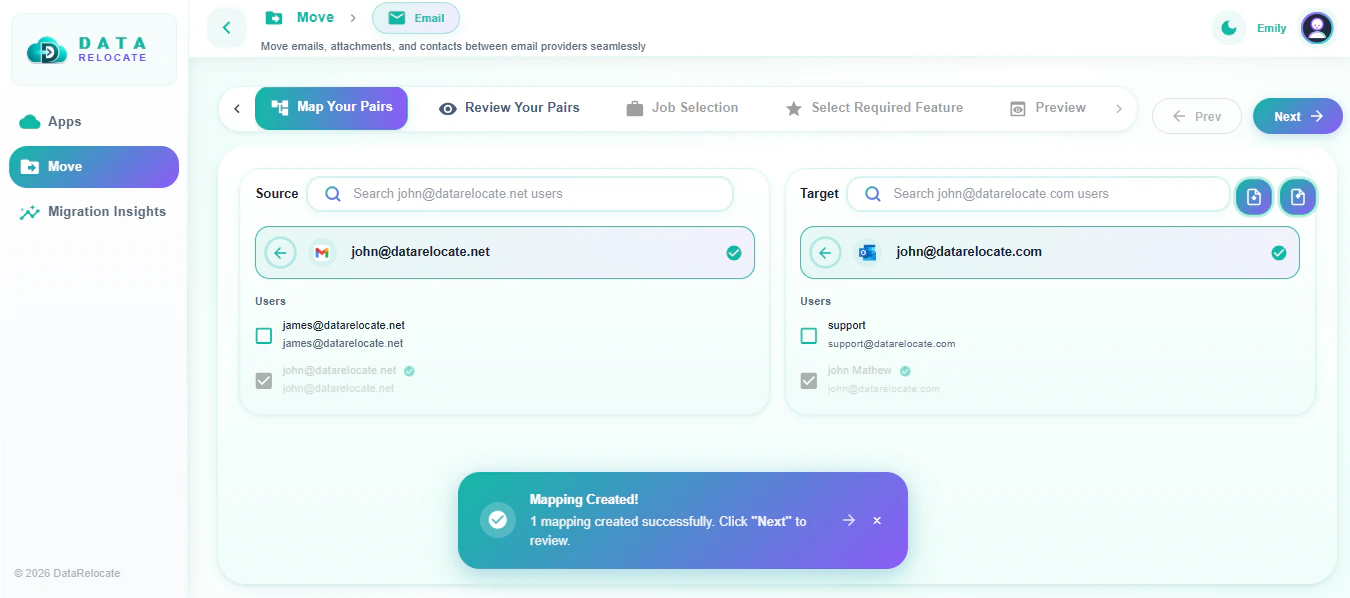
Map Gmail users to Outlook / Microsoft 365 accounts. Data Relocate supports auto-fetch of accounts and batch CSV mapping-choose the method that fits your directory.
Step 9: Review selected pairs
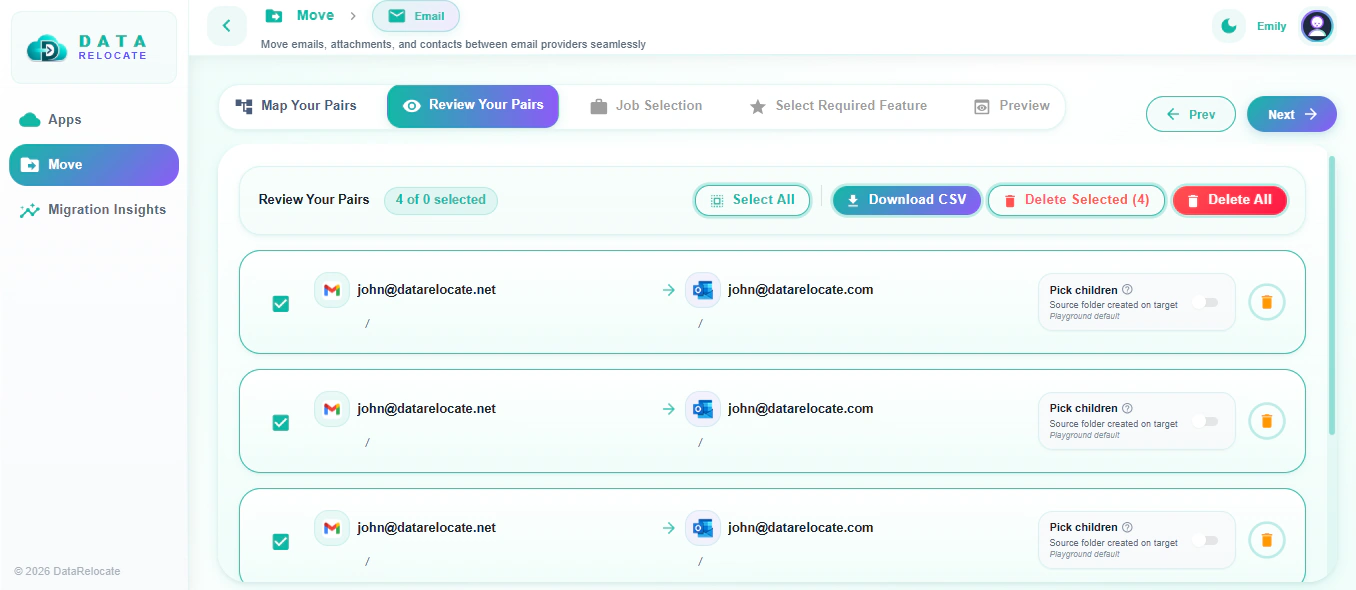
Carefully review every source-target pair. Download the mapping CSV if needed and correct mistakes before you continue.
Step 10: Select migration job type
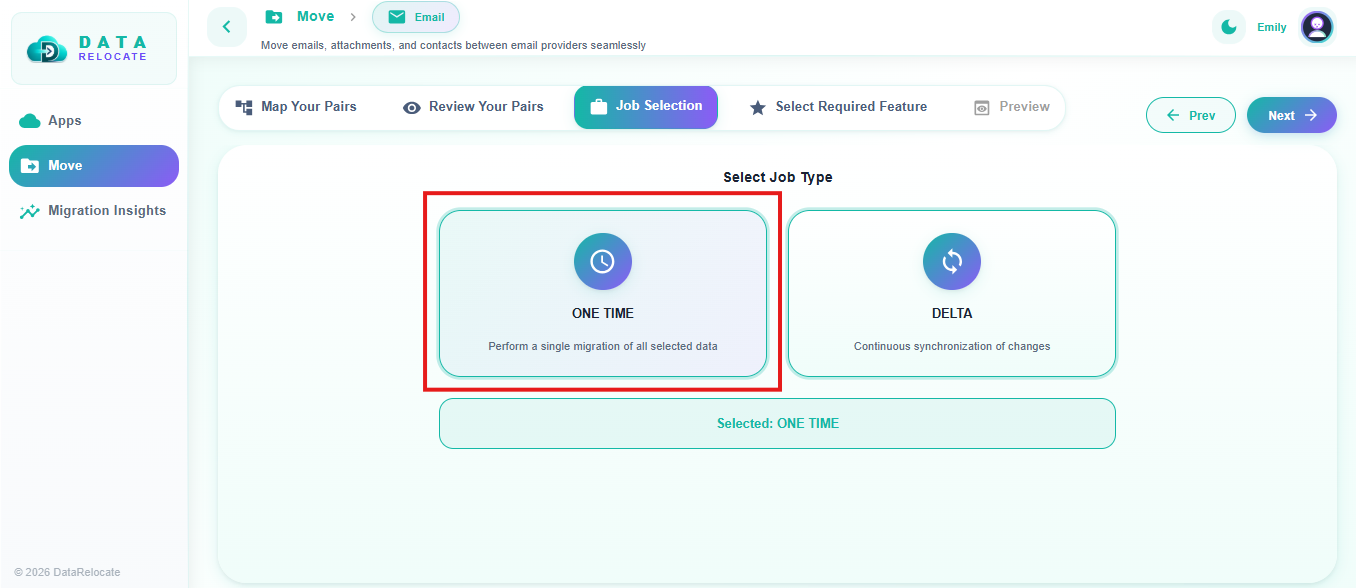
Choose One-Time Migration for the first pass. Use Delta Sync later to pick up incremental changes.
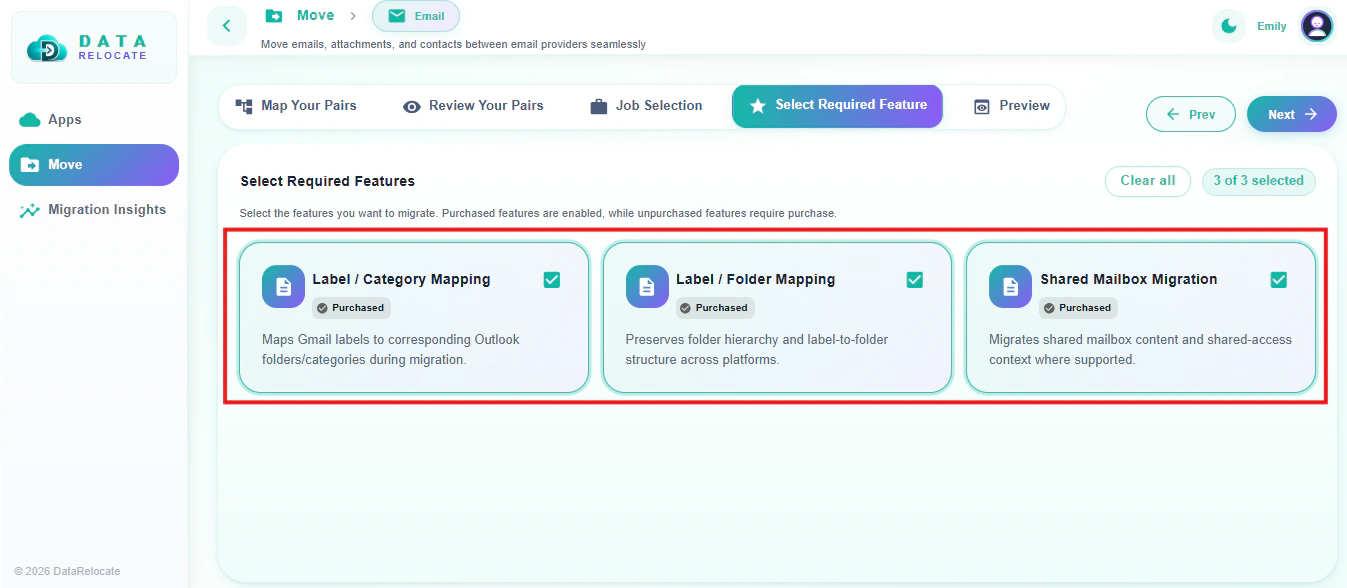
Step 11: Select required features
Using the SOW, select the features and scopes you want to migrate from Gmail to Outlook.
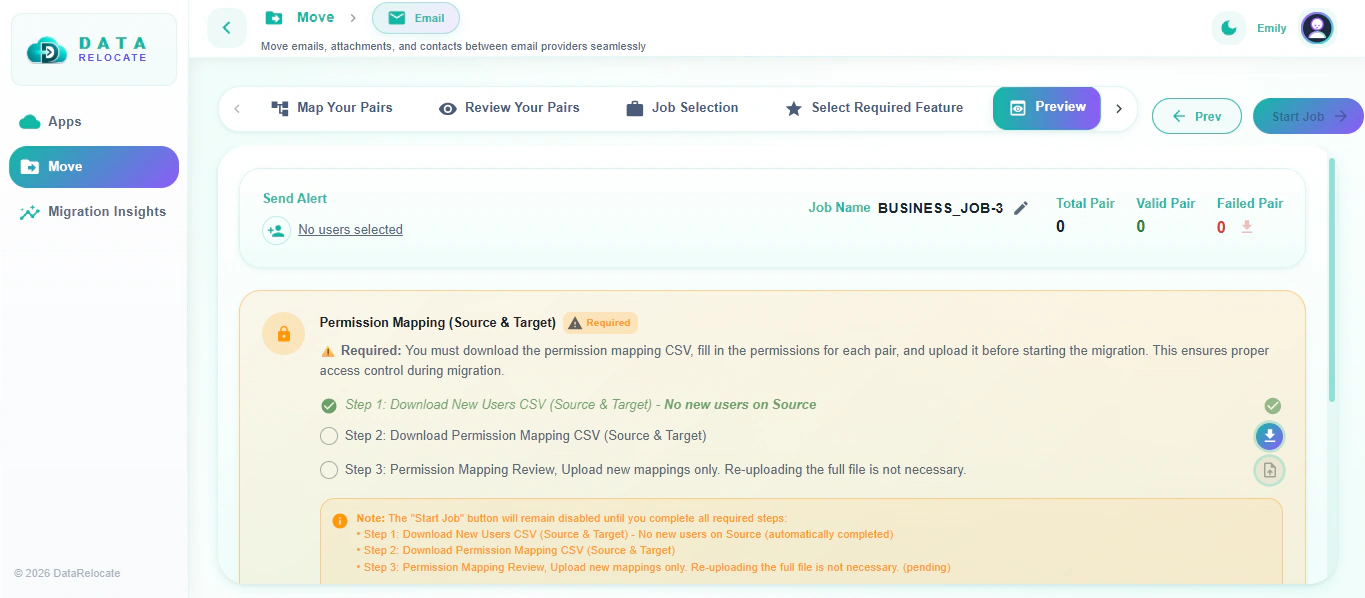
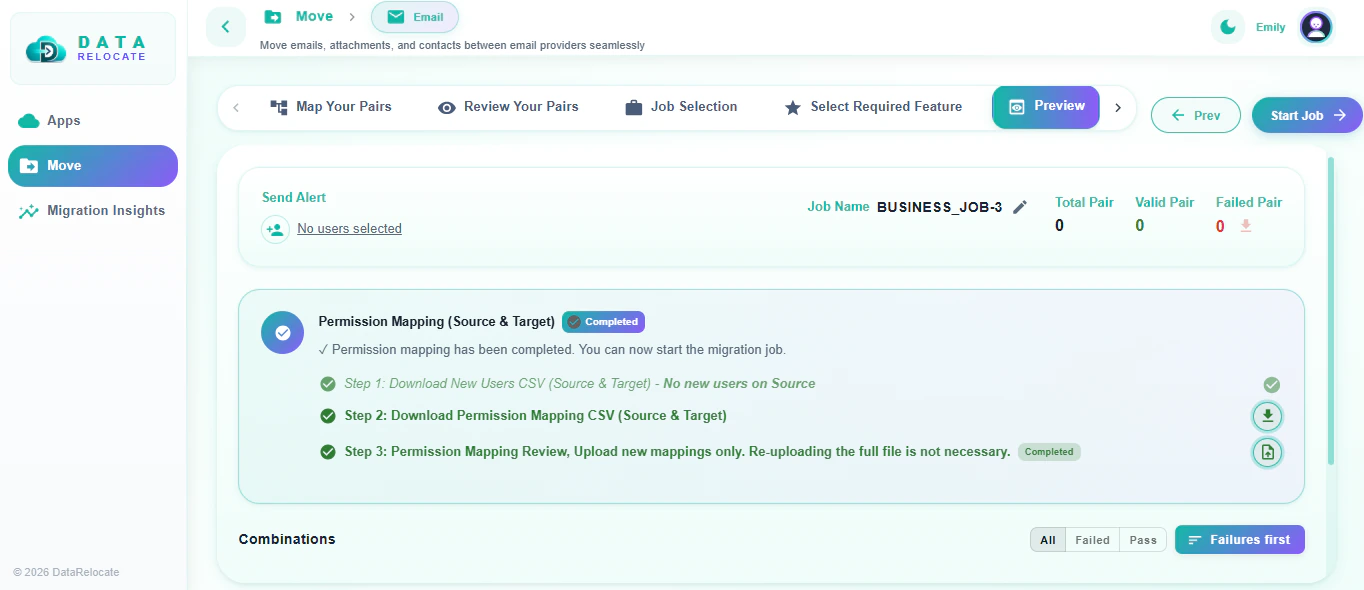
Step 12: Preview stage
Our Data Relocate Preview stage has 3 step validation process to validate all user mappings by providing the mappings in .csv format for User Validation and Confirmation before the production job starts.
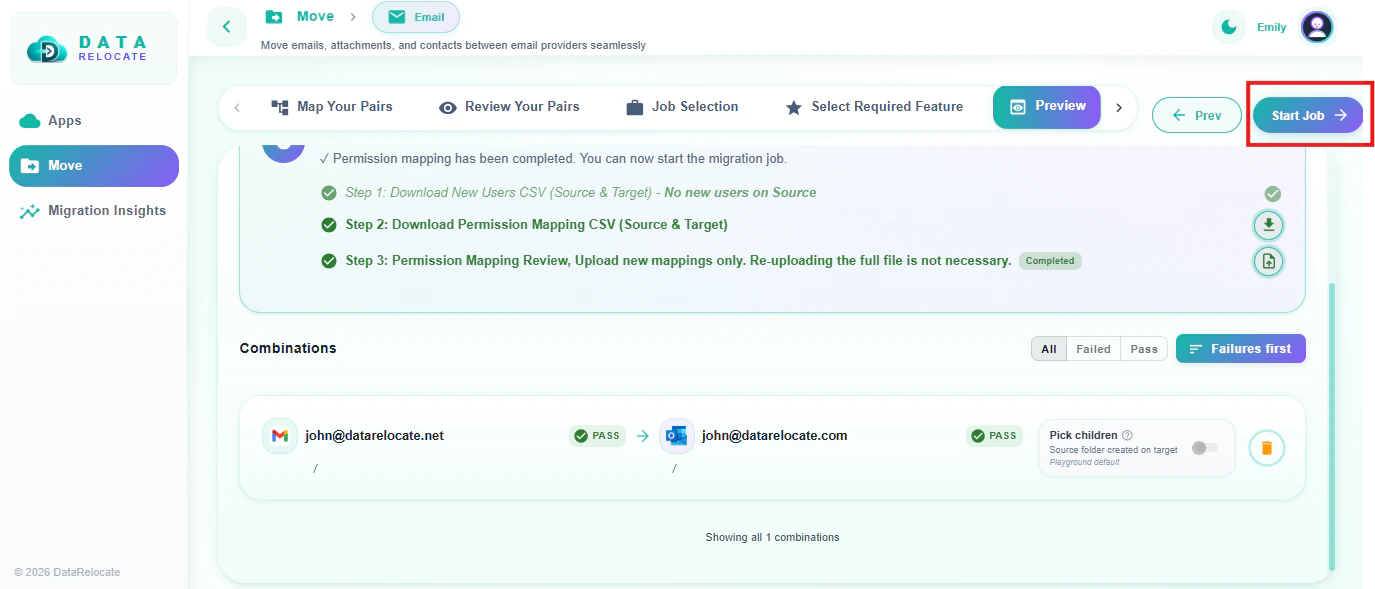
Step 13: Start the migration job
When preview succeeds, select the Start Job to initiate the migration job in Data Relocate.
Step 14: Monitor Migration Insights
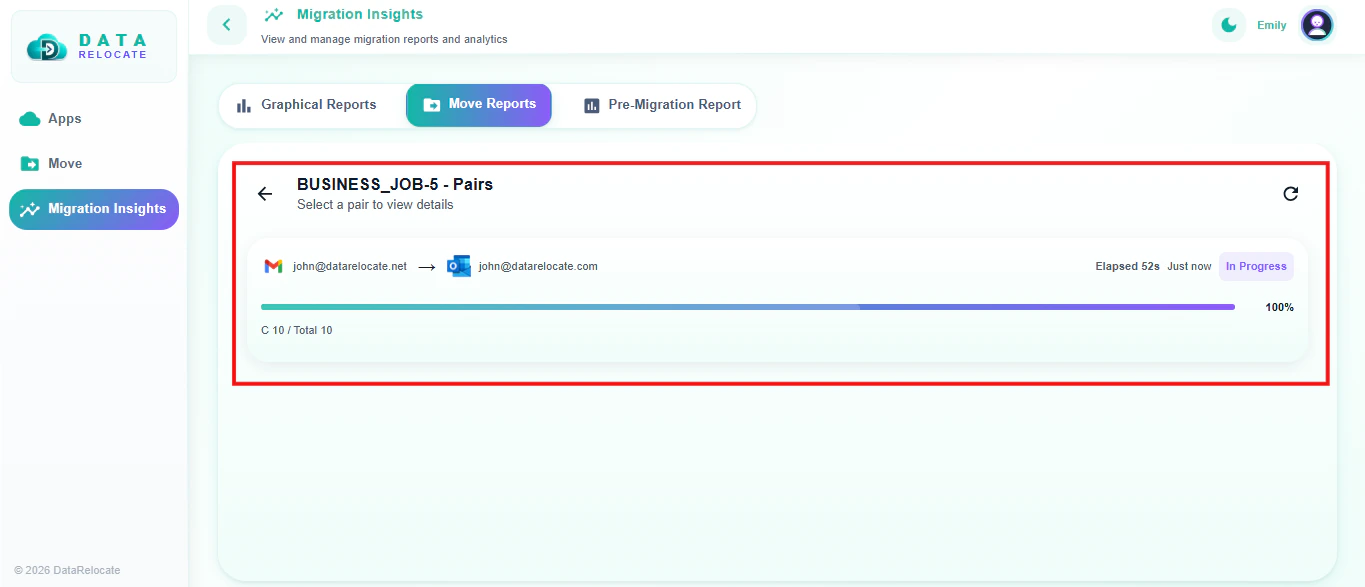
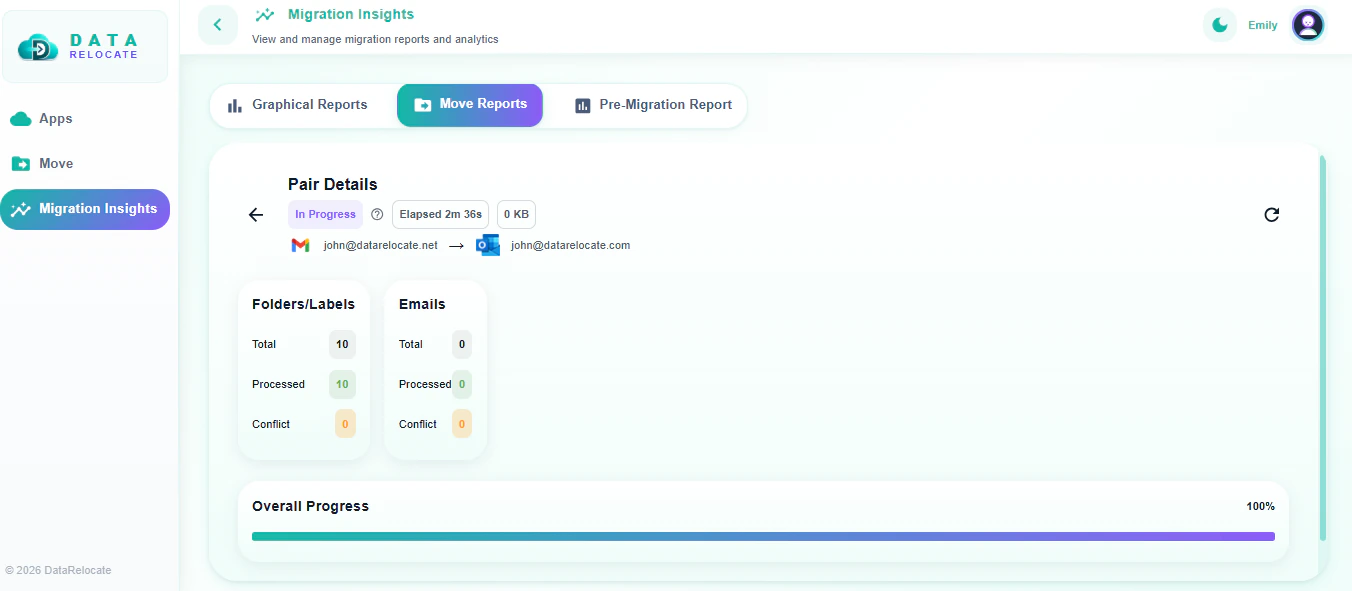
Use the Migration Insights dashboard and graphical reports to track total, in-progress, completed, and failed jobs. Use pre-migration reports and downloadable reports for audit and batch review.
Checks to run after the first migration pass
After One-Time Migration, verify Outlook before you call the wave complete.
1. Migration report validation
Review reports per batch:
- Users completed vs users with warnings or failures
- Total items migrated
- Failed or skipped items
- Errors and retry status
- Start and completion times
Investigate problem mailboxes before final sign-off.
2. Email and attachment validation
For representative users, compare Gmail and Outlook for inbox, sent, drafts, archives, folders, attachments, recent mail, historical mail, and important messages.
3. Label-to-folder validation
Confirm nested label structures mapped correctly and that no critical mail is missing because of folder mapping issues. Spot-check messages that had multiple Gmail labels.
4. Contacts and calendar validation
If in scope, check contacts, events, recurring meetings, attendees, times, and shared calendar needs.
5. Delta Sync validation
After the final Delta Sync, confirm recently received and sent messages are in Outlook.
6. Email flow validation
After cutover, test internal and external send/receive, replies, attachments, and delivery to important domains.
7. User access validation
Confirm Microsoft 365 login, Outlook web and desktop/mobile access, authentication / IdP integration, and access to migrated data.
8. Security and policy validation
Review Microsoft 365 controls your organization requires: access policies, admin permissions, email security settings, retention, and domain-level configuration. Rebuild compliance controls in Microsoft 365 rather than assuming Google Admin settings transfer automatically.
Tips that keep Gmail to Outlook projects on track
- Run a pilot with varied mailbox sizes before company-wide waves.
- Confirm admin OAuth access for source and target before migration day.
- Lock user mapping and review the CSV before the first production job.
- Document filters, signatures, and multi-label mail that must be rebuilt or remapped in Outlook.
- Use One-Time Migration, then Delta Sync, before the final cutover.
- Validate label-to-folder mapping, contacts, and calendars per batch.
- Plan MX and DNS changes if primary delivery moves to Microsoft 365.
- Keep Migration Insights reports for audit and failed-item follow-up.
Ready to transfer Gmail to Outlook with Data Relocate
Share this readiness list with IT and change-management leads before you freeze a cutover date.
Data Relocate moves Gmail mailboxes to Outlook with One-Time Migration, Delta Sync, preview checks, and Migration Insights so teams can cut over with clear status. See the Gmail to Outlook migration solution for path details, then open Pricing when you want a quote.
Bring mailbox counts, SOW scope, and target dates for a migration plan and assessment.
Frequently Asked Questions
How long does Gmail to Outlook migration take?
Runtime depends on mailbox size, user count, throttling, and batch design. Pilots give the best timeline estimate for your tenant.
Can we migrate without disrupting daily email?
Users can keep working on Gmail during One-Time Migration. Plan Delta Sync and a clear cutover window so new mail is not missed.
What happens to Gmail labels in Outlook?
Labels become folders, including nested paths where supported. Messages with multiple labels need a primary-folder plan-pilot the mapping before company-wide waves.
Do contacts and calendars migrate with mail?
Yes when they are included in scope and the SOW. Always validate recurring events after migration.
Are Gmail filters and signatures migrated?
No. Rebuild filters as Outlook rules and recreate signatures after cutover. Document critical ones in the readiness checklist.
Can we migrate many mailboxes at once?
Yes-run batches by department, size, or priority, and validate each wave before the next.
How do shared mailboxes get handled?
Design the Microsoft 365 equivalent first, map them separately, and validate access after migration.
What is Delta Sync used for?
Delta Sync captures new and changed items after the One-Time Migration so cutover includes recent mail.
Should we run a pilot first?
Yes. Include different mailbox sizes and at least one shared or delegated mailbox if those are in scope.