

Introduction
Moving from Microsoft Outlook to Gmail is more than transferring messages from one mailbox to another. For IT teams, an Outlook to Gmail migration can involve mailbox data, folders, contacts, calendars, attachments, metadata, user accounts, and the move from a Microsoft 365 or Exchange environment to Google Workspace.
A well-planned migration helps organizations reduce missing emails, unexpected disruption, and cutover surprises. It also gives administrators time to validate migrated data before users fully switch to Gmail.
This guide explains how IT teams can approach an Outlook to Gmail migration, what data can move, what to prepare, how to run the migration with the Outlook to Gmail migration solution, and how to validate after the first pass.
Outlook vs Gmail: Understanding the differences
A successful migration starts with understanding how the two platforms handle mailbox data.
| Feature | Outlook / Microsoft 365 | Gmail / Google Workspace |
|---|---|---|
| Mail organization | Exclusive folders | Labels (one message can have several labels) |
| Nested structure | Folder path such as Customers → Customer A | Label path such as Customers / Customer A |
| Categories | Outlook categories visually tag messages | No one-to-one category mirror; plan labels or filters after go-live |
| Rules | Outlook inbox rules | Rebuild as Gmail filters after cutover |
| Signatures | Outlook signatures | Rebuild in Gmail |
| Calendar | Outlook Calendar | Google Calendar |
| Contacts | Outlook contacts and GAL | Google Contacts |
| Admin console | Microsoft 365 Admin Center | Google Admin console |
| Collaboration | Teams, SharePoint | Drive, Meet, Chat |
| Compliance / policy settings | Exchange and Microsoft 365 policies | Redesign in Google Admin (settings do not transfer automatically) |
Benefits of Migrating Outlook to Gmail for Businesses
A well-planned Outlook to Gmail migration can simplify email management while moving users into Google Workspace. With the right strategy, businesses can transition mailbox data while reducing disruption and keeping access to important information.
Key benefits include:
- Centralized email and Workspace management — Manage Gmail users, groups, and security settings from the Google Admin console.
- Collaboration across Google Workspace — Gmail works with Drive, Meet, Chat, and Calendar in one identity.
- Cloud-based email access — Users can work from supported browsers and mobile apps without depending only on a local Outlook client.
- Simplified mailbox administration — Cloud admin tools can reduce effort compared with desktop-centric email support.
- Built-in productivity features — Search, labels, filters, and spam protection help users manage mail.
- Google Workspace AI capabilities — Eligible plans can use Gemini-assisted drafting, summarization, and search in Workspace apps.
- Scalable cloud infrastructure — Grow with Workspace without running your own mail servers.
- Less dependency on Outlook as the primary client — Standardize communication on Gmail and Workspace where that is the goal.
- Controlled migration with minimal disruption — One-Time Migration → Delta Sync → Validation → Cutover moves data in stages.
- Better visibility into the migration — Reports, validation, error tracking, and batch jobs give IT a clearer status of each wave.
Common challenges when migrating Outlook to Gmail
| Potential challenges | Solution |
|---|---|
| Large mailbox sizes slow migration | Use pre-migration cleanup and migrate in batches |
| Folder structure does not match Gmail labels | Pilot folder-to-label mapping before production waves |
| Calendar and contact gaps after cutover | Include contacts and calendars in scope and validate recurring events |
| Incorrect user mapping | Review CSV or auto-mapped pairs before the first job |
| Shared mailbox complexity | Design the Google equivalent first and migrate shared mailboxes as a separate scope |
| New mail arrives during the first pass | Run One-Time Migration, then Delta Sync, then a planned cutover |
| Rules, signatures, and categories missing in Gmail | Document and rebuild them in Gmail after cutover |
| Security and access risk | Use OAuth where supported and keep migration reports for audit |
What Data can be Migrated from Outlook to Gmail?
Before starting, IT Admins should define exactly what needs to move. Scope depends on the source environment and the migration path.
| Outlook | Migrated to Gmail | Gmail/ Workspace Equivalent |
|---|---|---|
| Inbox, Sent Items, Drafts | Yes | Inbox, Sent, Drafts |
| Deleted Items/ Junk Email | Yes | Mapped to Trash and Spam |
| Custom folders and subfolders | Yes | Converted to nested Gmail labels |
| Attachments | Yes | Kept with the original message; oversized or blocked items are reported |
| Timestamps | Yes | Original sent/received time retained where supported |
| Read / unread | Yes | State mirrored in Gmail where supported |
| Flagged / important | Yes | Outlook flags map to Gmail stars where supported |
| Threads | Yes | Conversation grouping follows Gmail threading rules |
| Contacts | Yes | Land in Google Contacts when scoped |
| Calendars (including recurring) | Yes | Validate exceptions after migration |
| Shared mailboxes | Yes | Design the Google equivalent before mapping |
| Signatures | Yes | Retained in Gmail |
| Rules and categories | Yes | Retained filters/labels in Gmail |
Pre-Migration Checklist for IT Admins
Complete this readiness checklist before production migration.
Administrator Access
Confirm admin access for the Microsoft source and Google Workspace target. For Microsoft 365, ensure permissions needed to reach Exchange Online mailboxes. On Google Workspace, ensure rights to create or manage target users and authorize the migration. Finish accounts, permissions, authentication, and API access before the first job.
Google Workspace Accounts and Licenses
Prepare target accounts for every in-scope user:
- Active Google Workspace account
- Gmail enabled
- Correct target address mapping
- Required licenses assigned
- Accounts ready to receive mail
Keep the source-to-target map ready before jobs start.
Mailbox and Data Scope
Document what must move from each Outlook mailbox:
- User count and mailbox sizes
- Inbox, Sent, drafts, custom folders, archives
- Attachments, contacts, calendars
- PST files, if applicable
- Shared or delegated mailbox needs
- Business-critical mailbox data
Outlook folders and Gmail labels
Review folder structures and decide how they should appear as labels. Example: Outlook `Customers → ABC Corporation` → Gmail `Customers / ABC Corporation`. Test mapping on a small representative set before production waves.
Contacts and calendars
If contacts and calendars are in scope, identify:
- User contacts and contact groups
- Personal and shared calendars
- Recurring events and meeting invites
- Ownership and sharing requirements
Plan validation for recurring series carefully.
Outlook Rules, Categories, and Signatures
List rules, categories, signatures, forwarding, delegation, and mailbox preferences users rely on. Most need recreation in Gmail—document what must be rebuilt after cutover.
User Authentication Readiness
Complete OAuth or other authorization for source and target before migration day. Verify access against representative mailboxes.
Migration Batches
Group users by department, location, mailbox size, priority, or complexity. Start with a pilot that covers different mailbox scenarios, then scale.
Delta Sync and Cutover Readiness
Users may keep sending and receiving on Outlook during the first pass. Plan:
One-Time Migration → Delta Sync → Validation → Final Delta Sync → Cutover
Define the cutover window and tell users when Outlook stops being primary and when Gmail takes over.
DNS and Mail Routing
If primary delivery moves from Microsoft 365 to Google Workspace, plan MX and related DNS changes. Test before production cutover where possible.
Migration validation plan
Do not rely only on “job completed” status. Define checks for message counts, recent and historical mail, attachments, folder-to-label mapping, contacts, calendars, and failed or skipped items. Keep a validation checklist per batch.
Outlook to Gmail migration features supported by Data Relocate
The Outlook to Gmail migration solution covers the scopes below when they are included in your Statement of Work (SOW). Confirm path-specific support before production.
| Features | Supported |
|---|---|
| One-Time Migration and Delta Sync | Yes |
| Inbox, Sent, Drafts, Deleted, and Junk | Yes* |
| Read / unread status | Yes* |
| Timestamps | Yes* |
| Custom folders mapped to labels | Yes* |
| Mail attachments | Yes* |
| Contacts and calendars | Yes* |
| Shared mailboxes | Yes* |
| Outlook signatures | Yes* |
| Inbox rules and categories | Yes* |
*Where the source, target, and migration path support it. Oversized or blocked items are reported.
How to Migrate Outlook to Gmail using Data Relocate
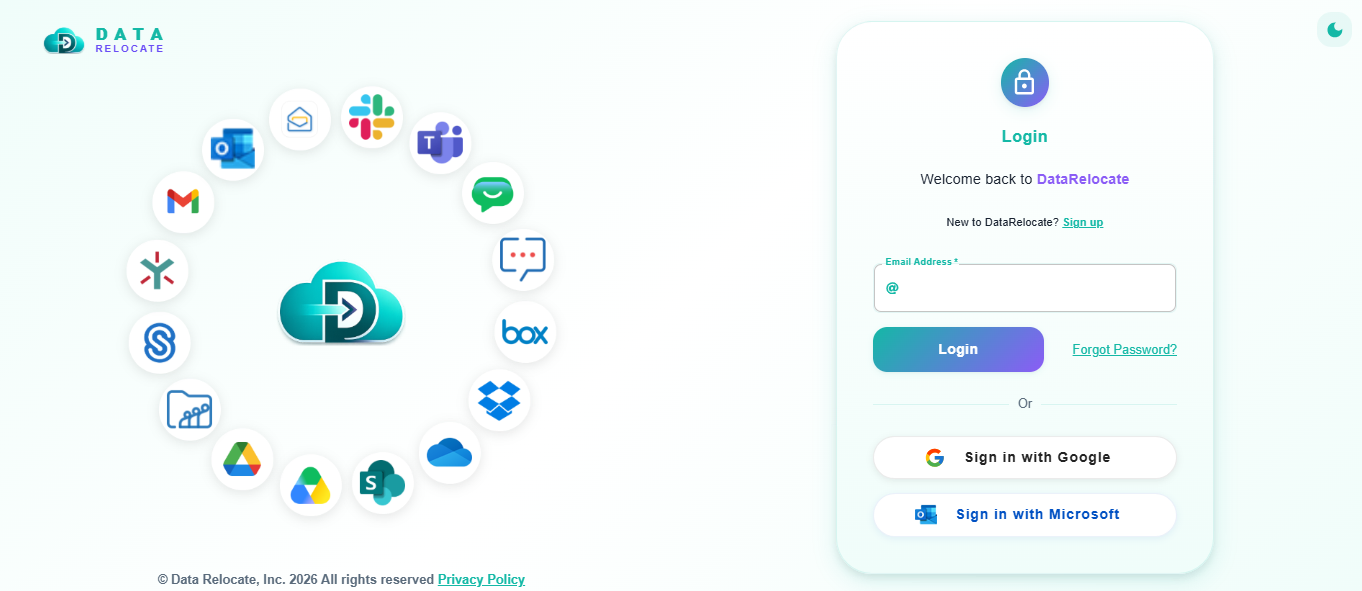
Step 1: Log into Data Relocate
Sign up or log into Data Relocate. Request a quote from Pricing and get a Statement of Work (SOW) for Outlook to Gmail migration.
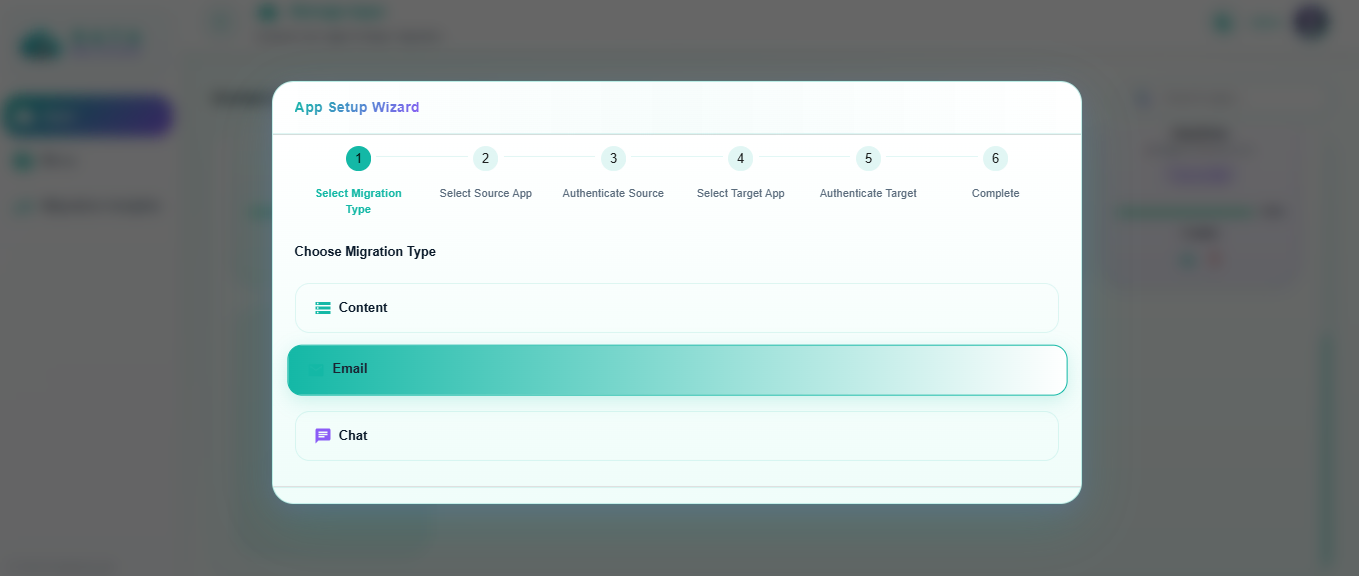
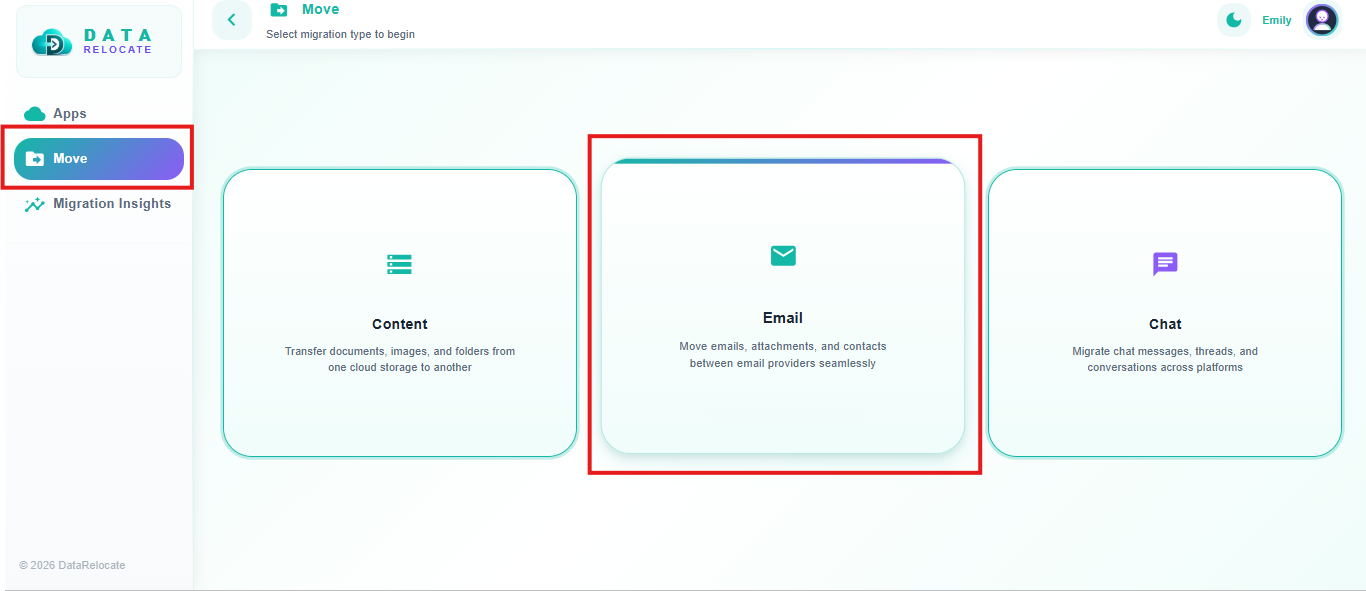
Step 2: Select Migration type
Choose Email as the migration type for Outlook to Gmail.
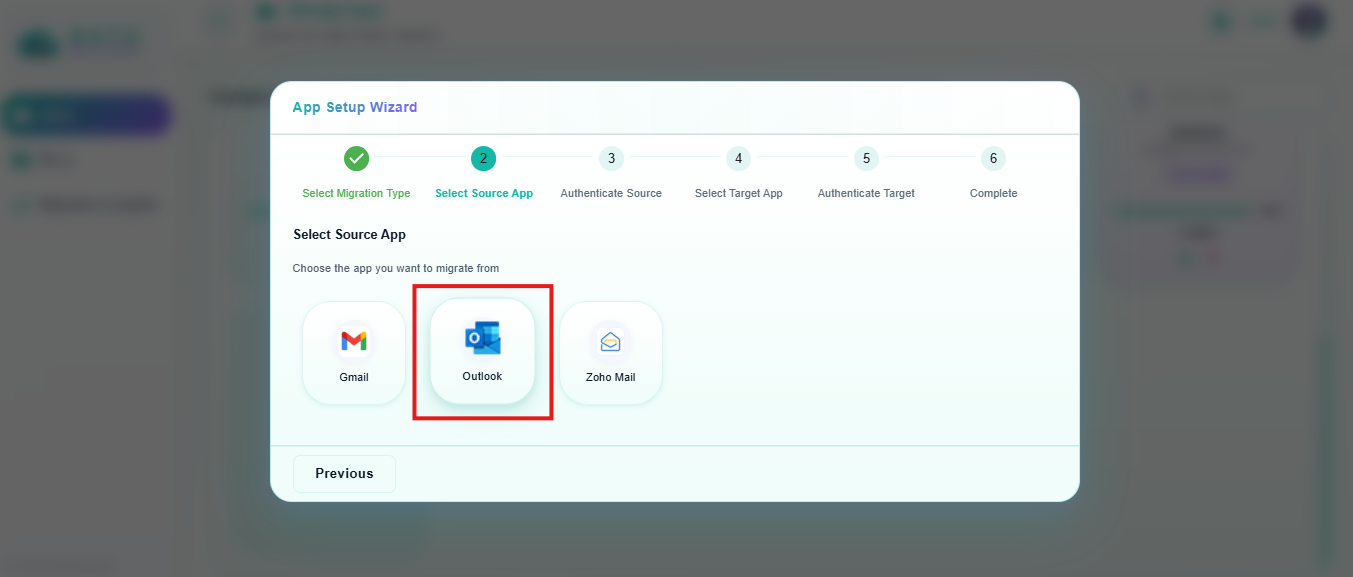
Step 3: Add Outlook as the Source
Select Outlook as the source app and start authentication.
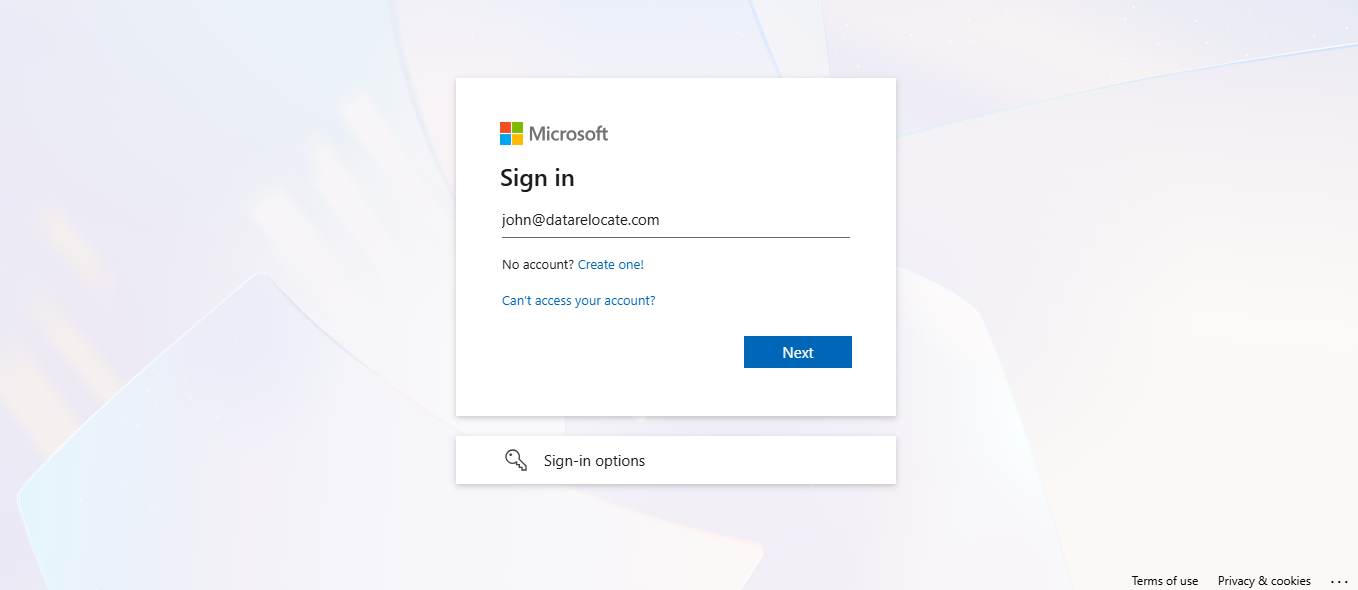
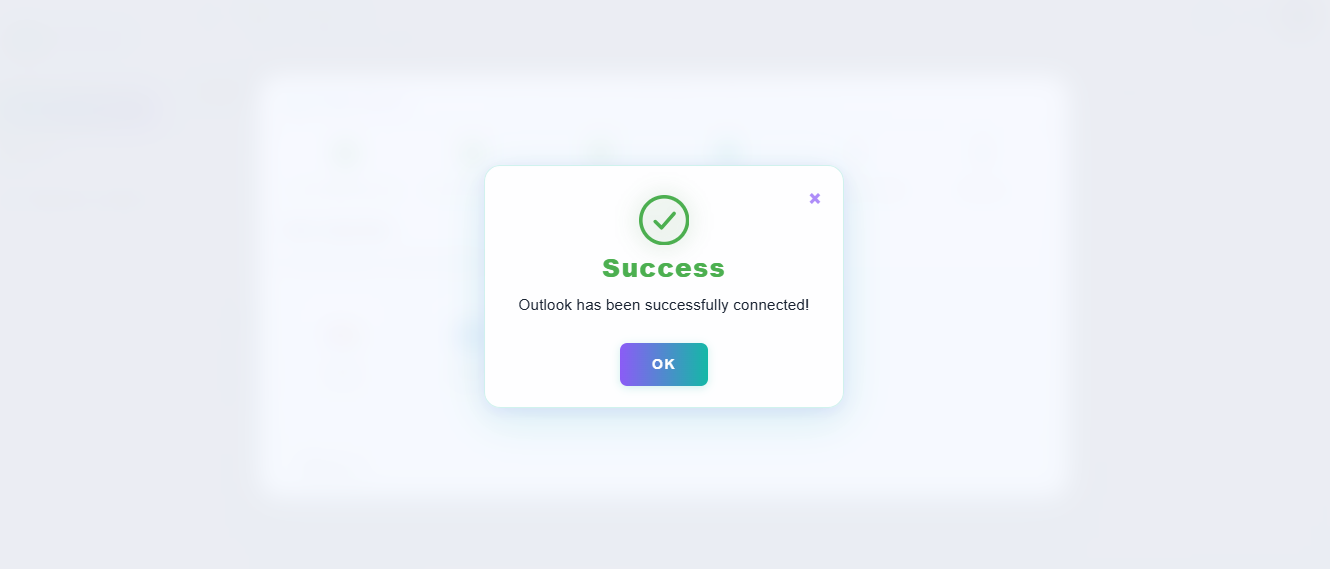
Step 4: Authenticate Outlook
Complete OAuth for the Outlook / Microsoft 365 cloud. Data Relocate authorizes access without storing user passwords.
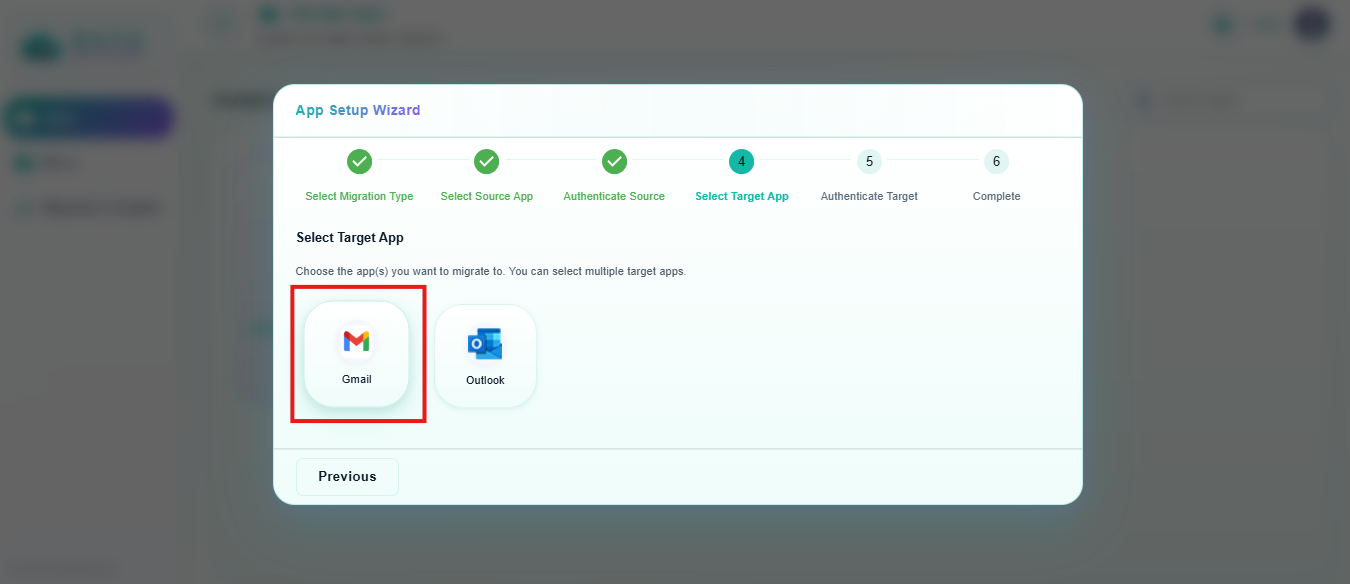
Step 5: Add Gmail as the Target
Select Gmail as the target app and start authentication.
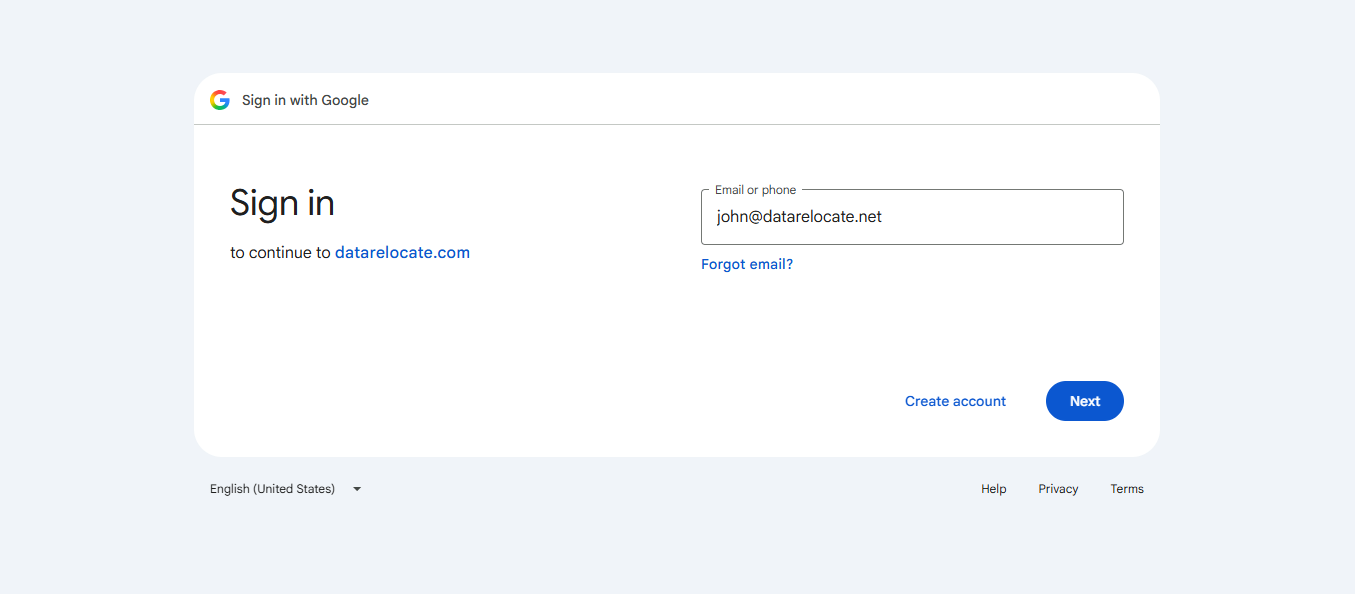
Step 6: Authenticate Gmail
Finish Target OAuth. Confirm both clouds are connected, then set Outlook as source and Gmail as target for the job.
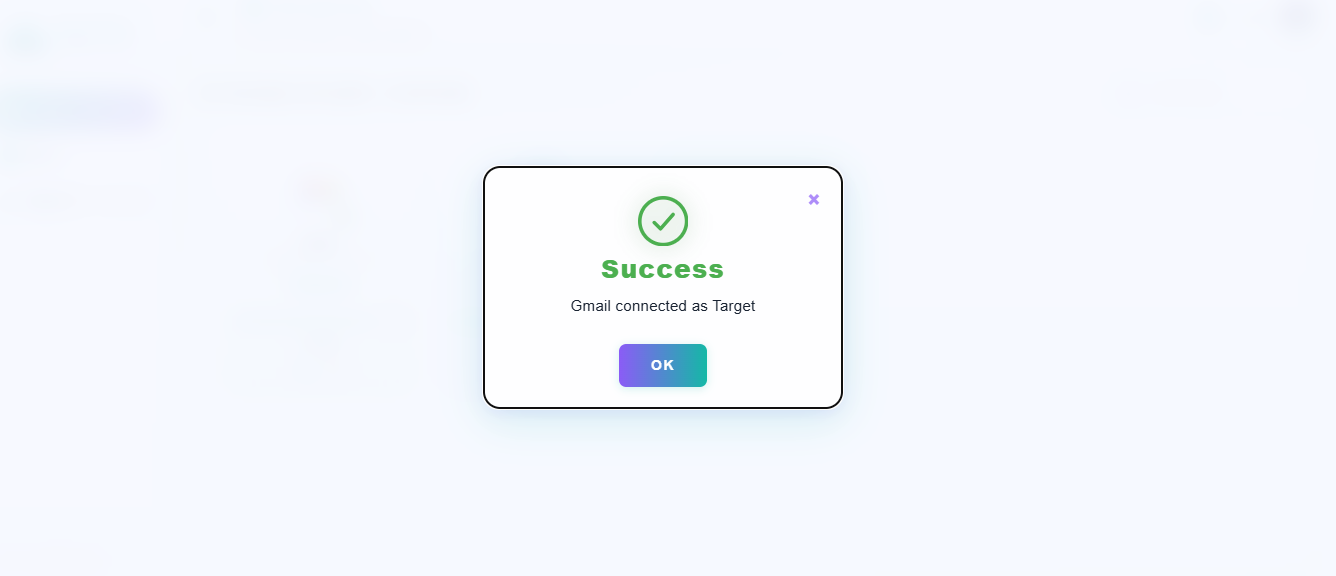
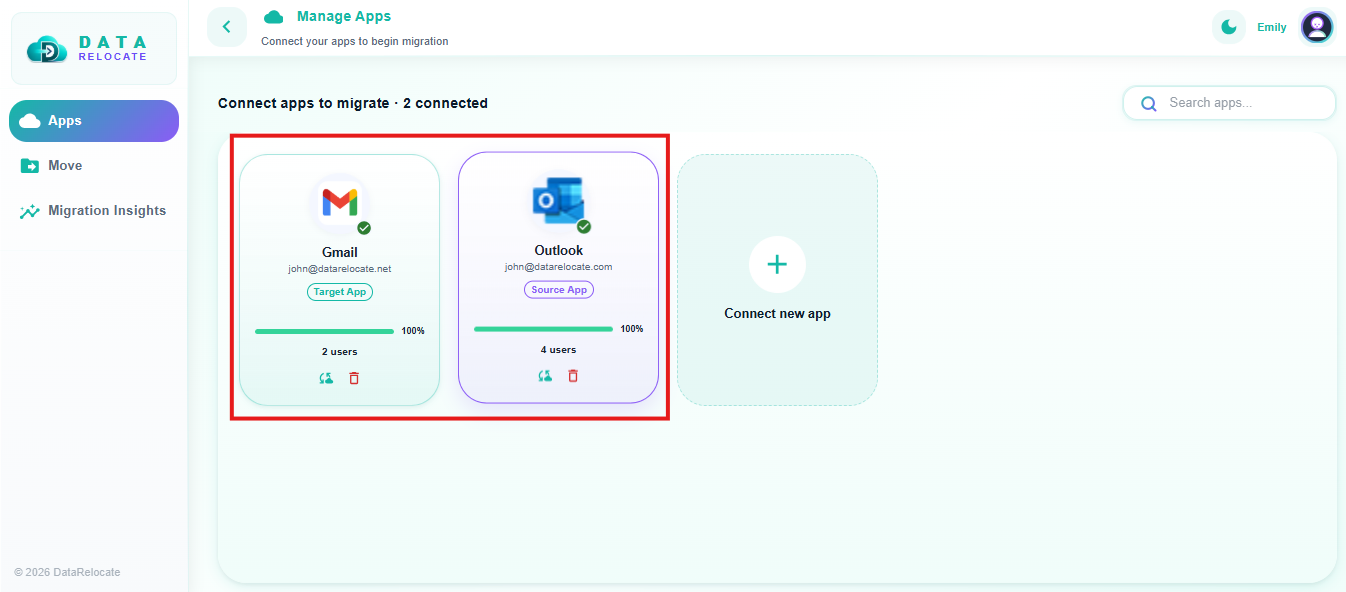
Step 7: Confirm Both Source and Target Clouds are added
Confirm both Source and Target Clouds are added successfully.
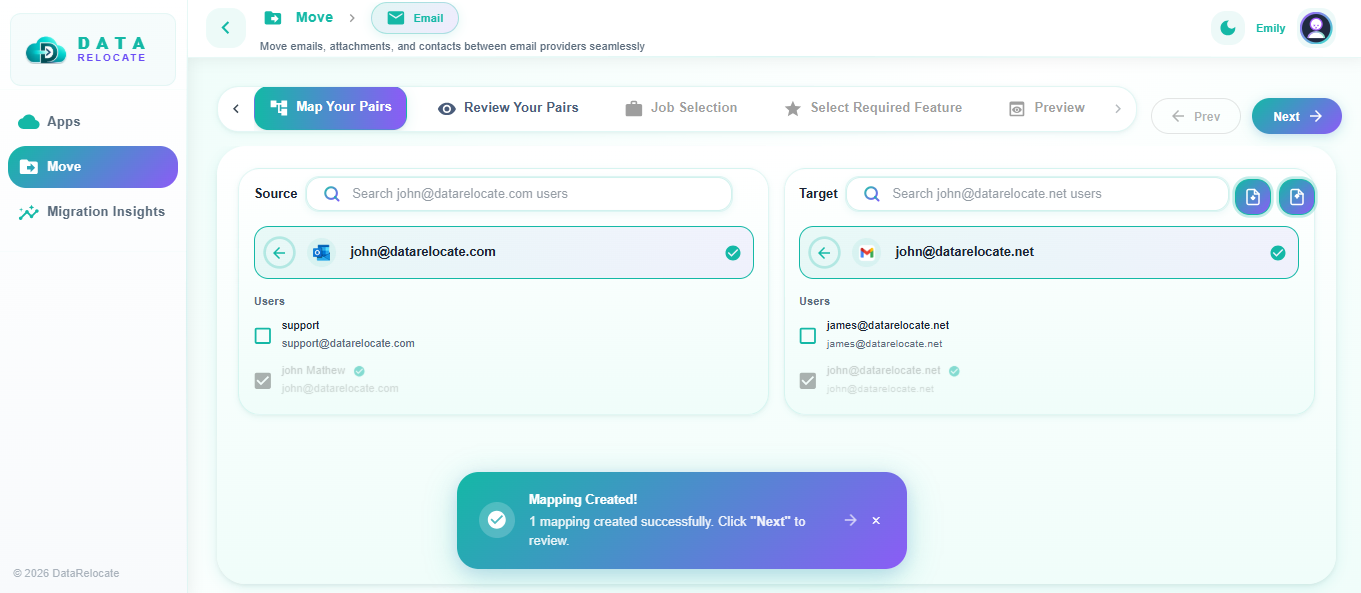
Step 8: Map Source and Target User Accounts
Select Move Tab and click Email Migration Type and Map Outlook users to Gmail accounts. Data Relocate supports auto-fetch of accounts and batch CSV mapping—choose the method that fits your directory.
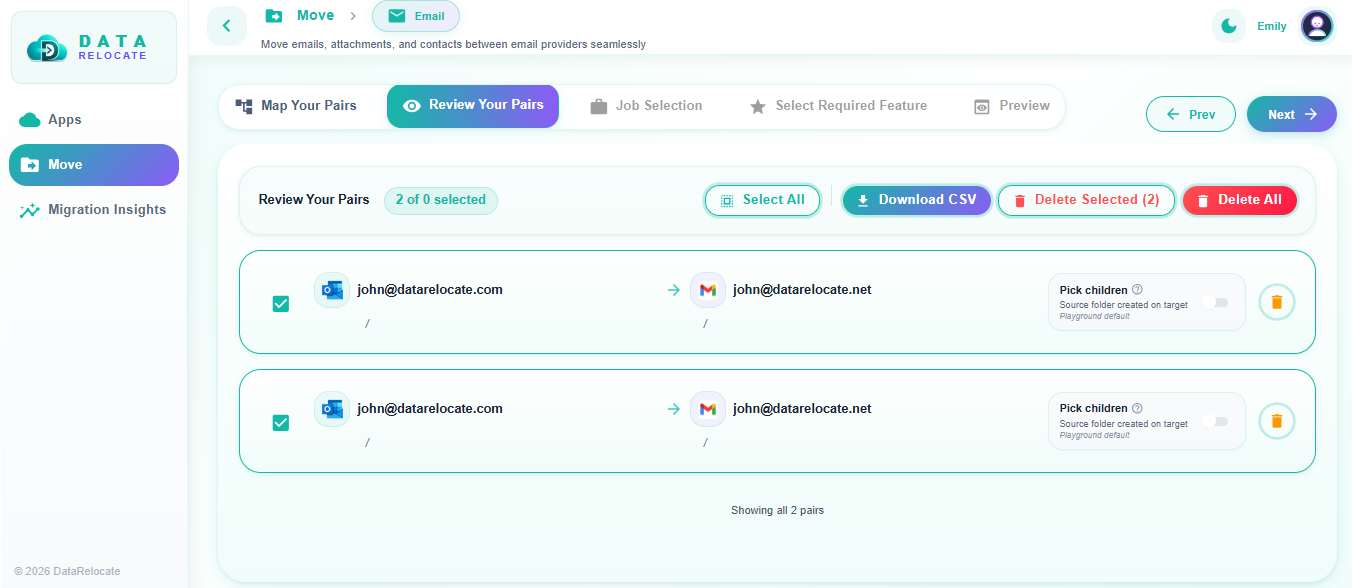
Step 9: Review Selected User Accounts Pair
Carefully review every source–target pair. Download the mapping CSV if needed and correct the mapping mistakes before you continue and Click Next.
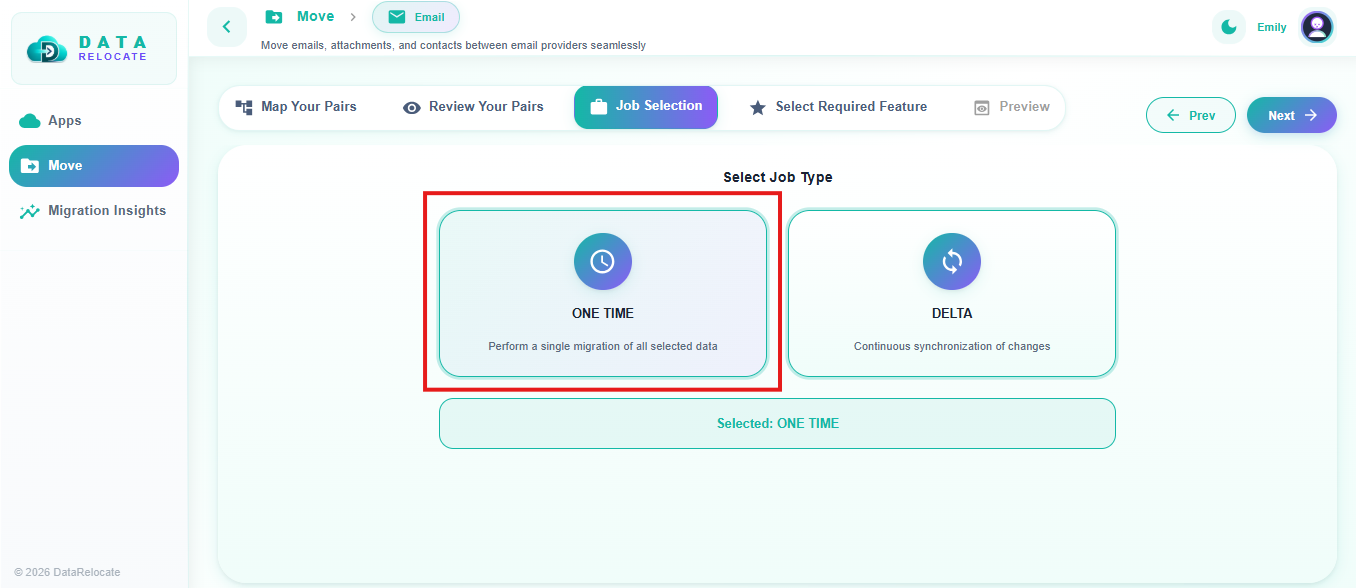
Step 10: Select Migration job type
Choose One-Time Migration for the first pass and Click Next. Use Delta Sync later to pick up incremental changes.
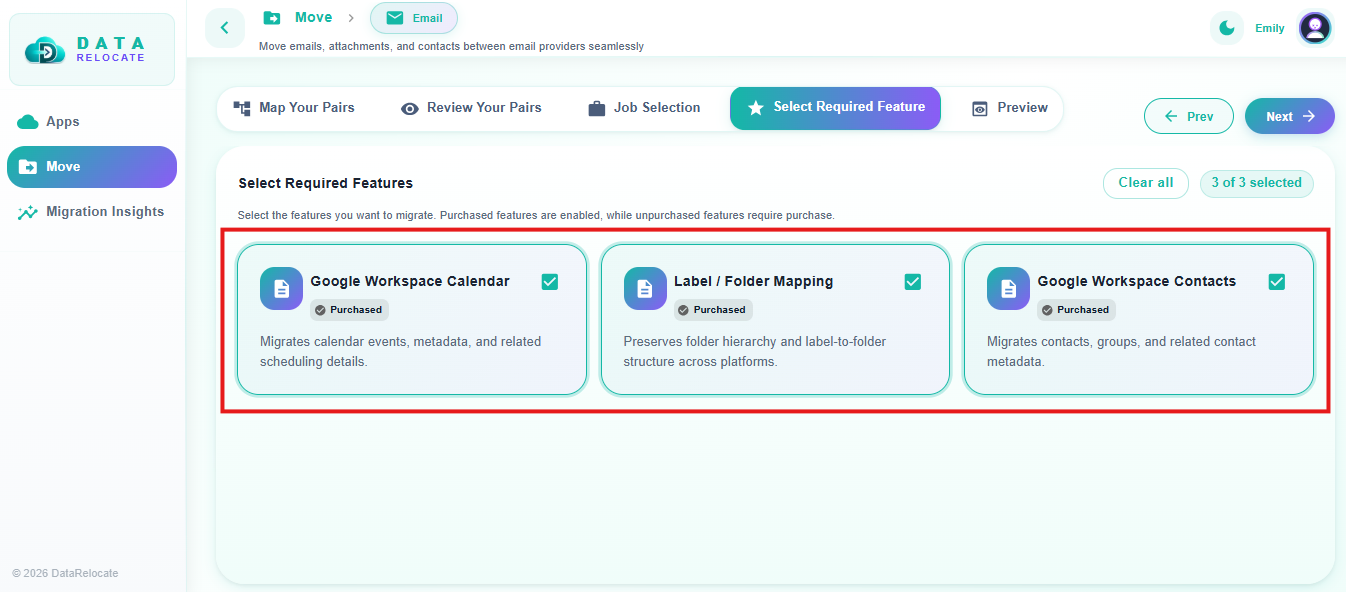
Step 11: Select Required features
Using the SOW, select the features and scopes you want to migrate from Outlook to Gmail.
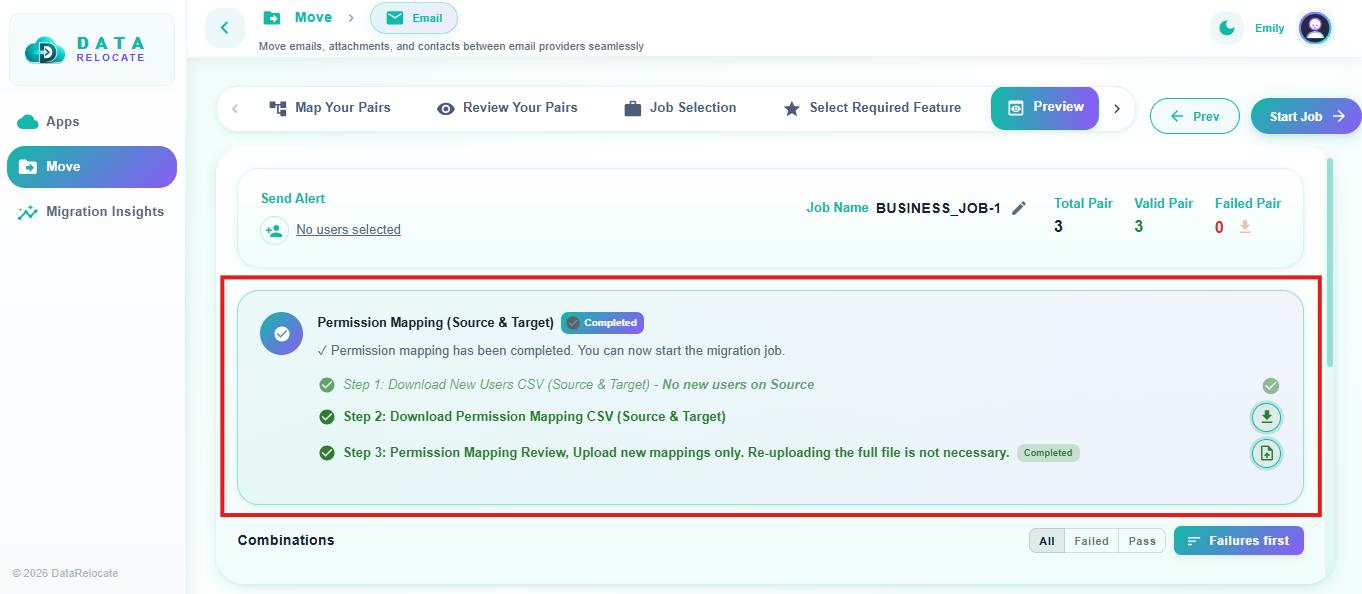
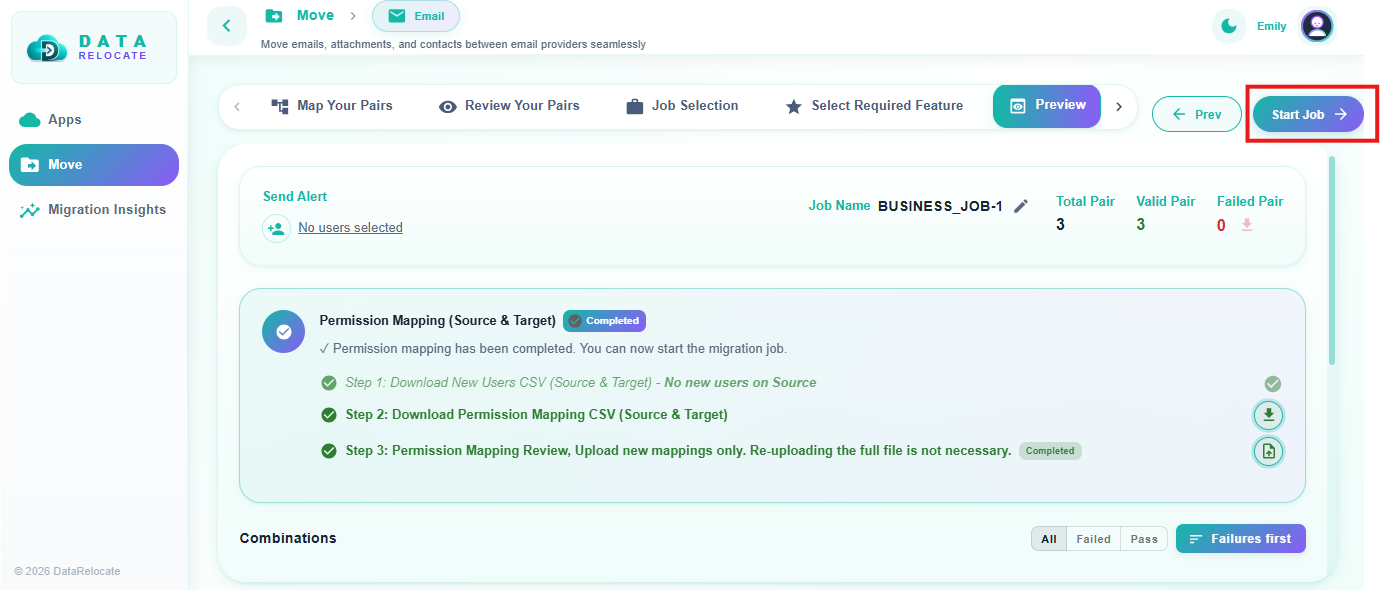
Step 12: Preview Stage
Our Data Relocate Preview stage has 3 step validation process to validate all user mappings by providing the mappings in .csv format for User Validation and Confirmation before the production job starts.
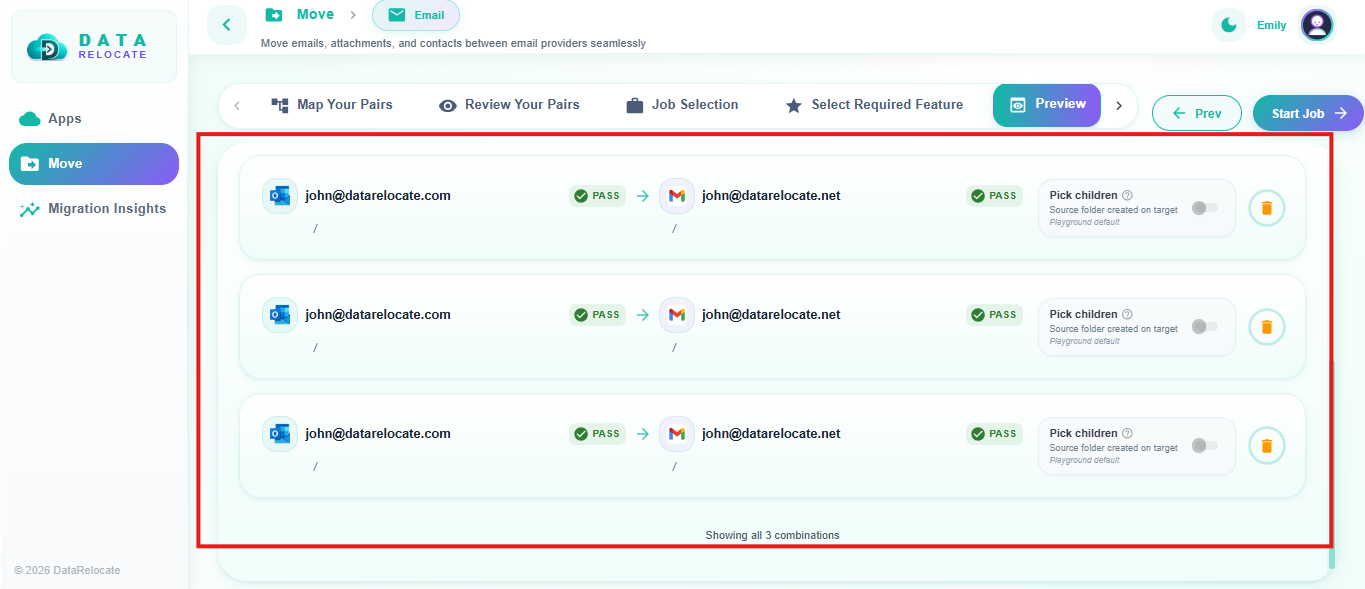
Step 13: Start the Migration job
When preview succeeds, select the Start Job in Data Relocate.
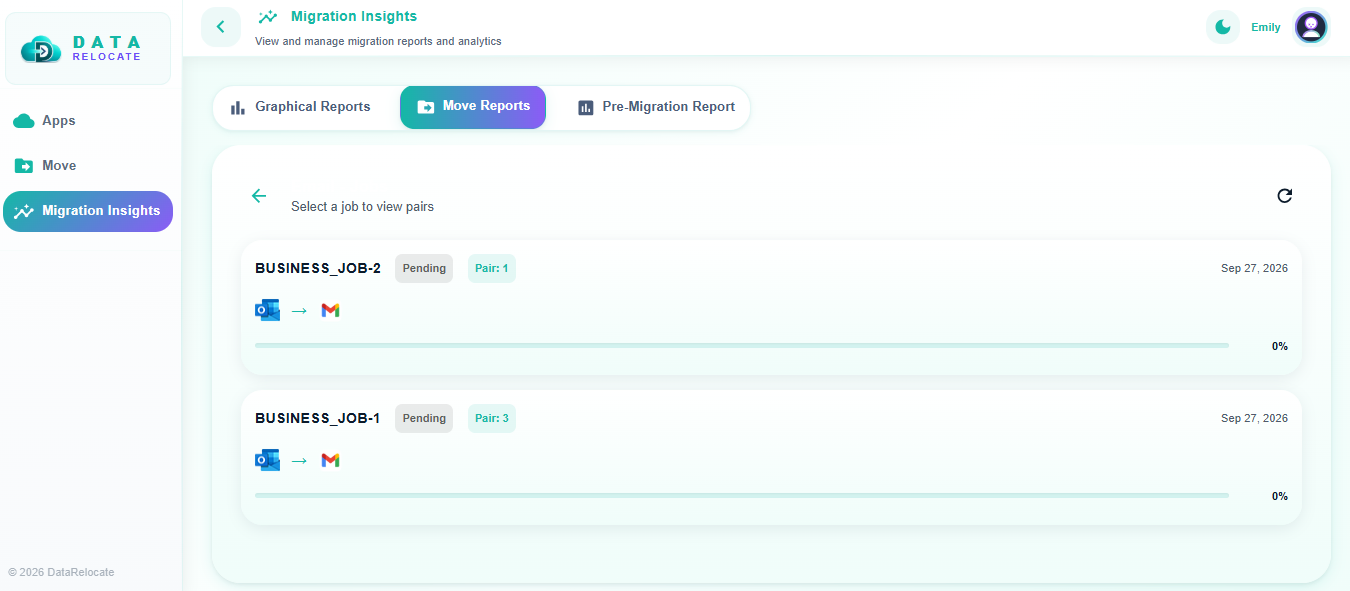
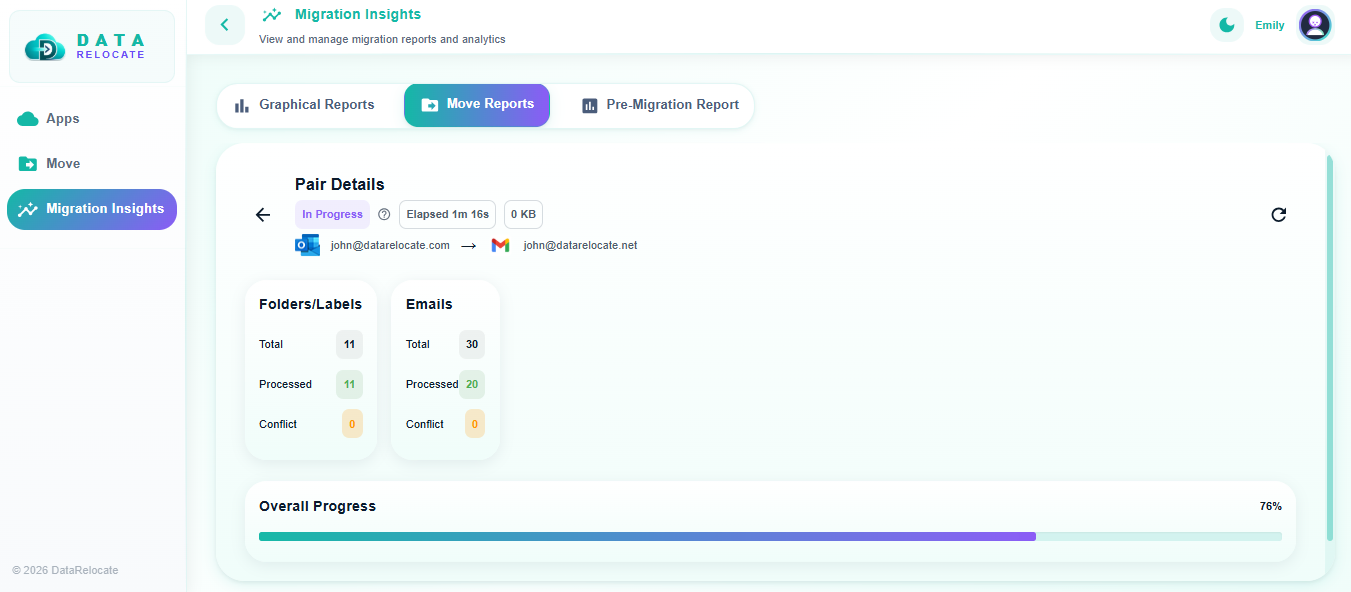
Step 14: Monitor Migration Insights
Use the Migration Insights dashboard and graphical reports to track total, in-progress, completed, and failed jobs. Use pre-migration reports and downloadable reports for audit and batch review.
Post-migration validations
After the One-Time Migration, validate the Gmail environment before you treat the project as done.
1. Migration Report Validation
Review reports per batch:
- Users completed vs users with warnings or failures
- Total items migrated
- Failed or skipped items
- Errors and retry status
- Start and completion times
Investigate problem mailboxes before final sign-off.
2. Email and Attachment Validation
For representative users, compare Outlook and Gmail for inbox, sent, drafts, archives, labels, attachments, recent mail, historical mail, and important messages.
3. Folder-to-label Validation
Confirm nested folder structures mapped correctly and that no critical mail is missing because of label mapping issues.
4. Contacts and Calendar Validation
If in scope, check contacts, events, recurring meetings, attendees, times, and shared calendar needs.
5. Delta Sync Validation
After the final Delta Sync, confirm recently received and sent messages are in Gmail.
6. Email flow Validation
After cutover, test internal and external send/receive, replies, attachments, and delivery to important domains.
7. User Access Validation
Confirm Workspace login, Gmail web and mobile access, authentication / IdP integration, and access to migrated data.
8. Security and Policy Validation
Review Google Admin controls your organization requires: access policies, admin permissions, email security settings, retention, and domain-level configuration. Rebuild compliance controls in Google Admin rather than assuming Microsoft settings transfer automatically.
Best practices for Outlook to Gmail migration
- Run a pilot with varied mailbox sizes before company-wide waves.
- Confirm admin OAuth access for source and target before migration day.
- Lock user mapping and review the CSV before the first production job.
- Document rules, signatures, and categories that must be rebuilt in Gmail.
- Use One-Time Migration, then Delta Sync, before the final cutover.
- Validate folder-to-label mapping, contacts, and calendars per batch.
- Plan MX and DNS changes if primary delivery moves to Google Workspace.
- Keep Migration Insights reports for audit and failed-item follow-up.
Plan your Outlook to Gmail move with Data Relocate
Use this checklist with your IT and change-management leads before you lock a cutover date.
Data Relocate helps you move Outlook mailboxes to Gmail with One-Time Migration, Delta Sync, preview validation, and Migration Insights reporting so teams can cut over with clear visibility. Review the Outlook to Gmail migration solution for path details, then use Pricing when you are ready for a quote.
Share mailbox counts, SOW scope, and target dates for a migration plan and quote.
Frequently Asked Questions
How long does Outlook to Gmail migration take?
Runtime depends on mailbox size, user count, throttling, and batch design. Pilots give the best timeline estimate for your tenant.
Can we migrate without disrupting daily email?
Users can keep working on Outlook during One-Time Migration. Plan Delta Sync and a clear cutover window so new mail is not missed.
What happens to Outlook folders in Gmail?
Folders become labels, including nested paths where supported. Pilot the mapping before company-wide waves.
Do contacts and calendars migrate with mail?
Yes when they are included in scope and the SOW. Always validate recurring events after migration.
Are Outlook rules and signatures migrated?
No. Rebuild rules, signatures, and categories in Gmail after cutover. Document critical ones in the pre-migration checklist.
Can we migrate many mailboxes at once?
Yes—run batches by department, size, or priority, and validate each wave before the next.
How do shared mailboxes get handled?
Design the Google equivalent first, map them separately, and validate access after migration.
What is Delta Sync used for?
Delta Sync captures new and changed items after the One-Time Migration so cutover includes recent mail.
Should we run a pilot first?
Yes. Include different mailbox sizes and at least one shared mailbox if shared mail is in scope.