
Data Relocate helps IT teams run a controlled ShareFile to OneDrive for Business migration when personal and user-scoped files must move into Microsoft 365 OneDrive accounts.
- One-Time Migration and Delta Sync
- Files and folder structure
- Folder and file permissions
- Version history Migration
- Document hyperlinks, comments, and file metadata Migration
- Timestamp Migration
Introduction
Moving ShareFile into OneDrive for Business is a file copy and a user-mapping job. You move folders, version history, permissions, comments, document hyperlinks, and metadata. Metadata means file details such as created time and author. OneDrive for Business is each user’s personal cloud drive in Microsoft 365.
This guide covers what can transfer, how the platforms differ, and how to prepare. It then shows how to run the job with the ShareFile to OneDrive for Business migration solution and what to check after the first pass.
What Data can be Migrated from ShareFile to OneDrive for Business?
What moves depends on the ShareFile account, the OneDrive accounts you provision, and the Statement of Work (SOW). An SOW is the agreed list of what this project includes.
| ShareFile Features | Migrated to OneDrive for Business |
|---|---|
| Files | Yes |
| Folders and subfolders | Yes |
| File version history | Yes |
| Root folder permissions | Yes |
| Root file permissions | Yes |
| Sub-folder permissions | Yes |
| File-level permissions | Yes |
| External collaborator permissions | Yes |
| Document hyperlinks inside files | Yes |
| File comments | Yes |
| File and folder metadata | Yes |
Challenges when Migrating ShareFile to OneDrive for Business
| Challenges | Solution |
|---|---|
| Shared company folders land in someone’s OneDrive | Send shared trees to SharePoint libraries. Keep this path for personal and user-scoped folders |
| A personal tree is larger than the OneDrive quota | Check each user’s quota before mapping. Raise it when the license allows, or trim archive folders first |
| ShareFile rights do not equal OneDrive sharing roles | Pilot a folder and compare view, edit, and delete access |
| Client users are not Microsoft 365 guests yet | Create or invite guests and allow the external sharing level the tenant needs |
| File names or paths that OneDrive rejects | Rename blocked characters and shorten paths that would pass 400 characters |
| More versions than the target keeps | Confirm version settings before the job if you need the full history |
| Too many unique permissions on nested folders | Group access where you can. Stay near the 5,000 recommended unique-permission range |
| People keep editing during the first pass | Run One-Time Migration, then Delta Sync, then a planned cutover |
| Old ShareFile links in emails and documents | Plan a redirect or a notice. Those addresses are not rewritten |
| The target slows under heavy transfer | Throttling means Microsoft 365 pauses or slows requests when volume is high. Use batches by user or department |
ShareFile to OneDrive for Business Migration features supported by Data Relocate
The ShareFile to OneDrive for Business migration solution covers the rows below when they are in your SOW.
| Features | Supported |
|---|---|
| One-Time Migration and Delta Sync | Yes |
| Files and folder structure | Yes |
| File version history | Yes |
| Root folder and root file permissions | Yes |
| Sub-folder and file-level permissions | Yes |
| External collaborator permissions | Yes |
| Document hyperlinks | Yes |
| File comments | Yes |
| File and folder metadata | Yes |
How to Migrate ShareFile to OneDrive for Business using Data Relocate
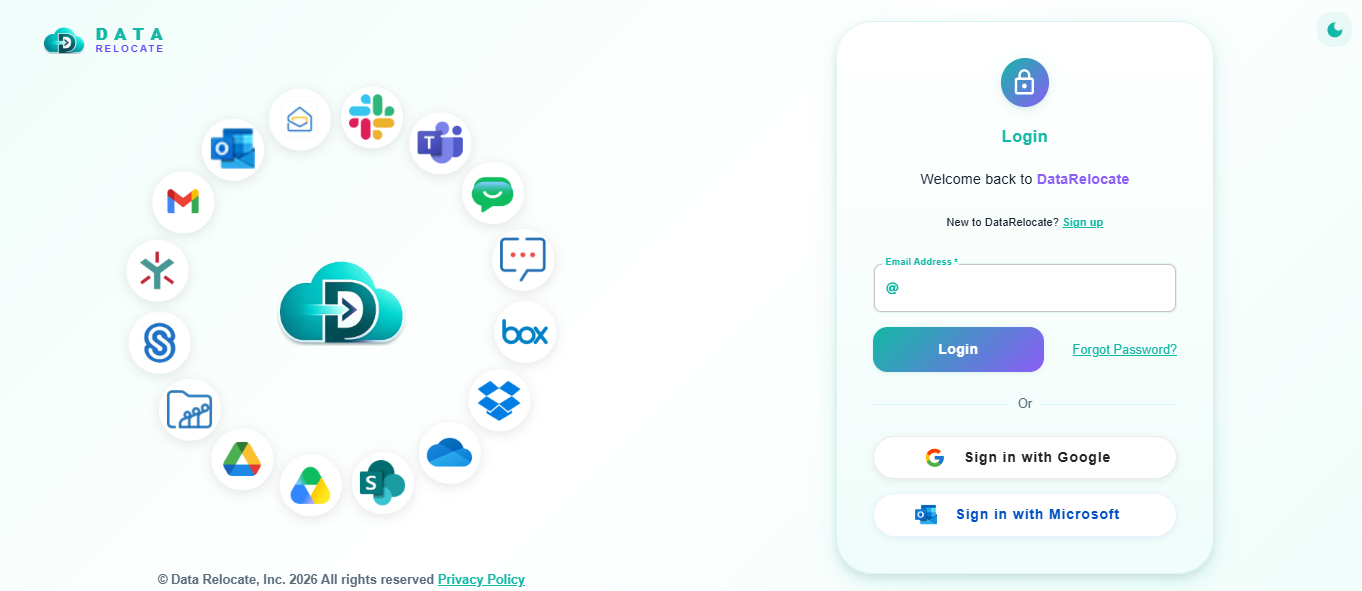
Step 1: Log into Data Relocate
Sign up or log into Data Relocate. Request a quote from Pricing and get an SOW for this ShareFile to OneDrive for Business project.
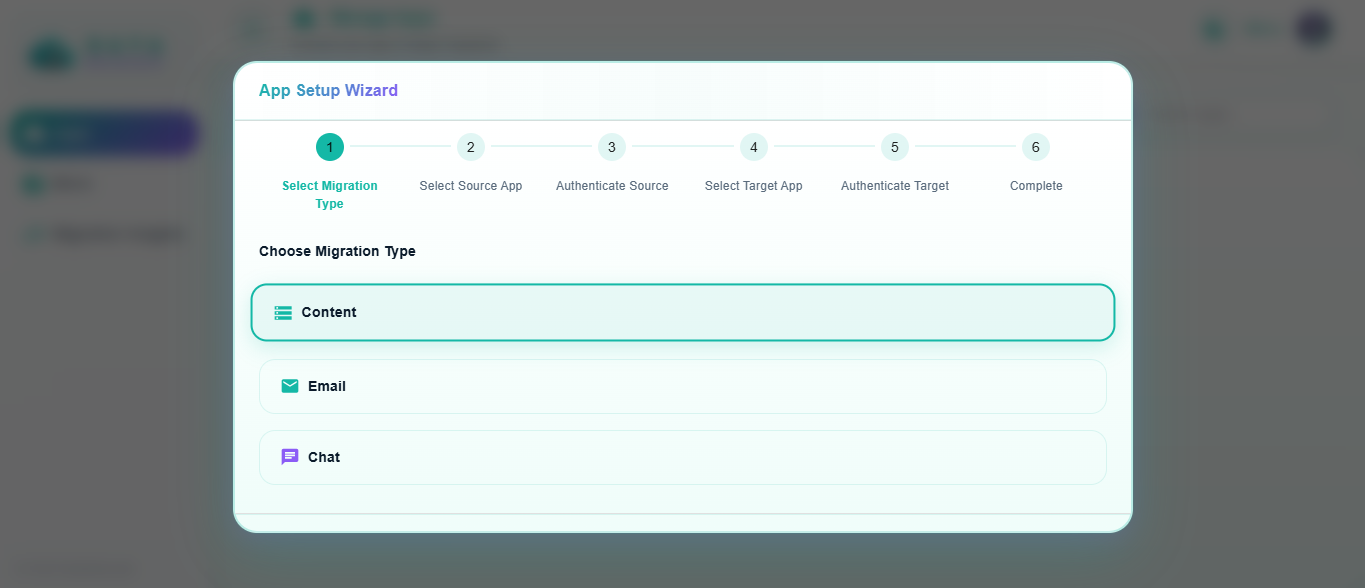
Step 2: Select Migration type
Choose Content as the migration type. This job moves documents, files and folders from one cloud storage to another.
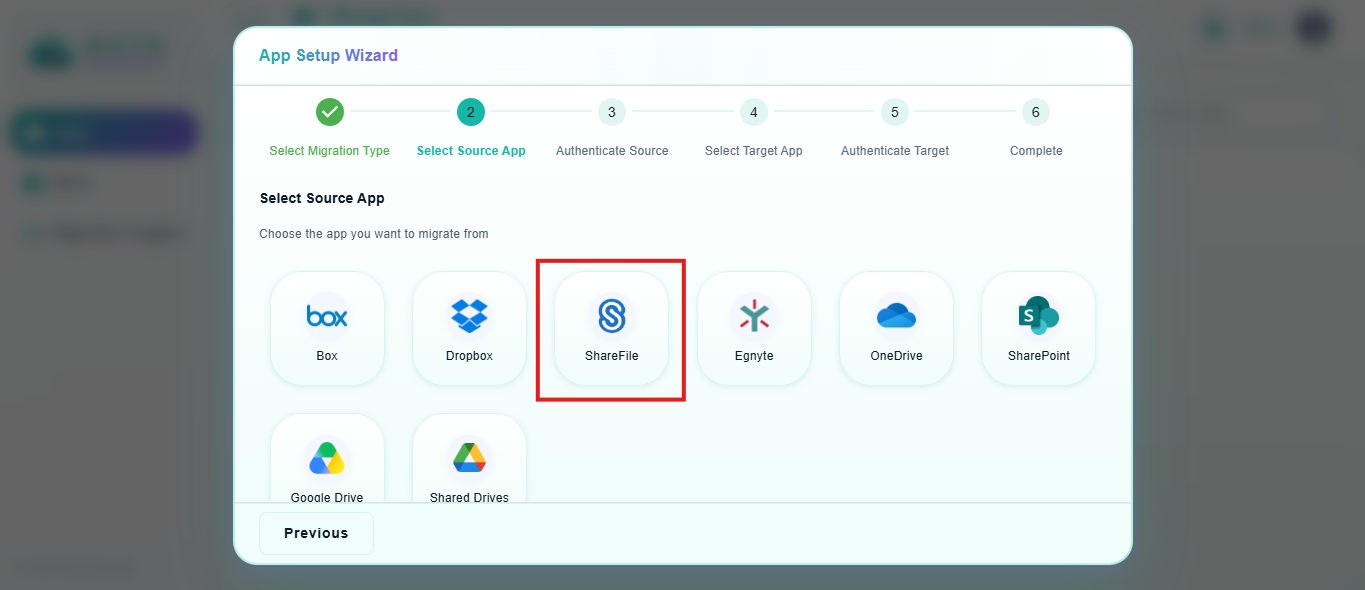
Step 3: Add ShareFile as the source
Select ShareFile as the source and start the connection.
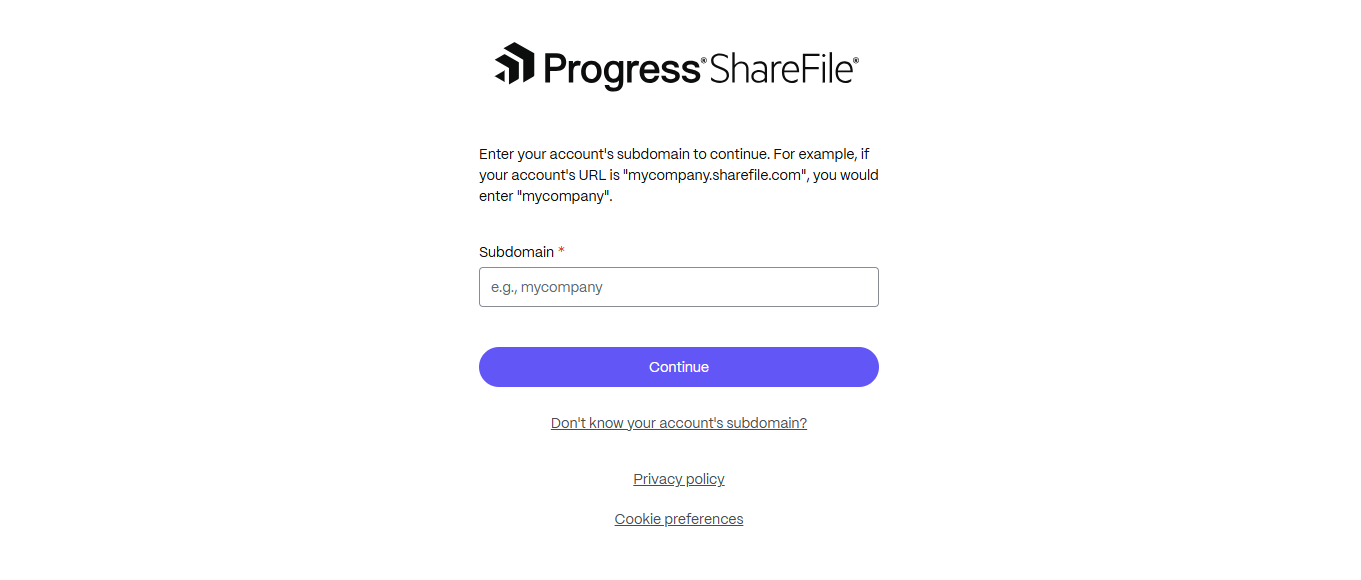
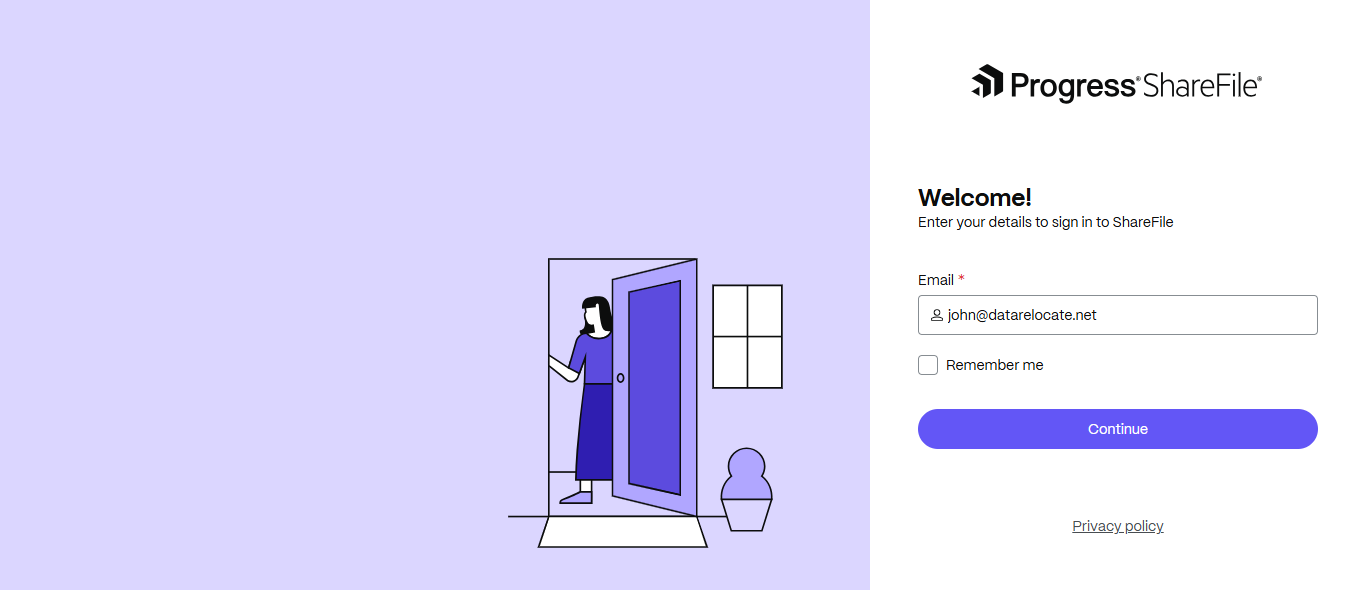
Step 4: Authenticate ShareFile
Complete authorization for the ShareFile account. Data Relocate authorizes access without storing user passwords.


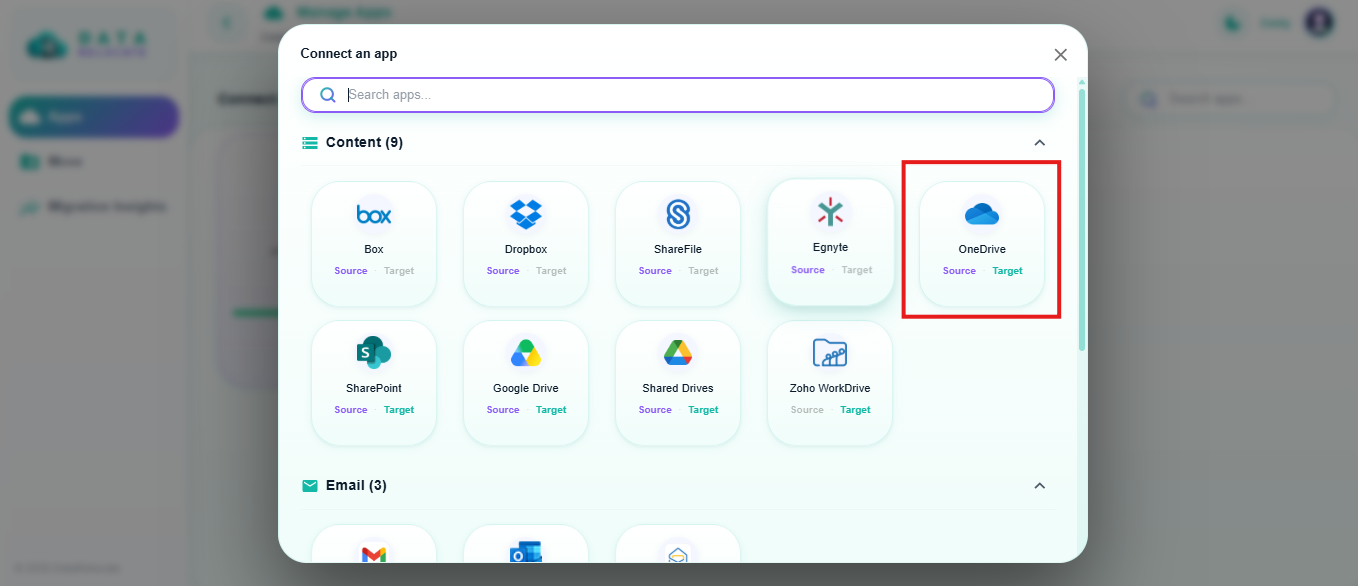
Step 5: Add OneDrive for Business as the Target
Select OneDrive for Business as the target and start the Microsoft 365 connection.
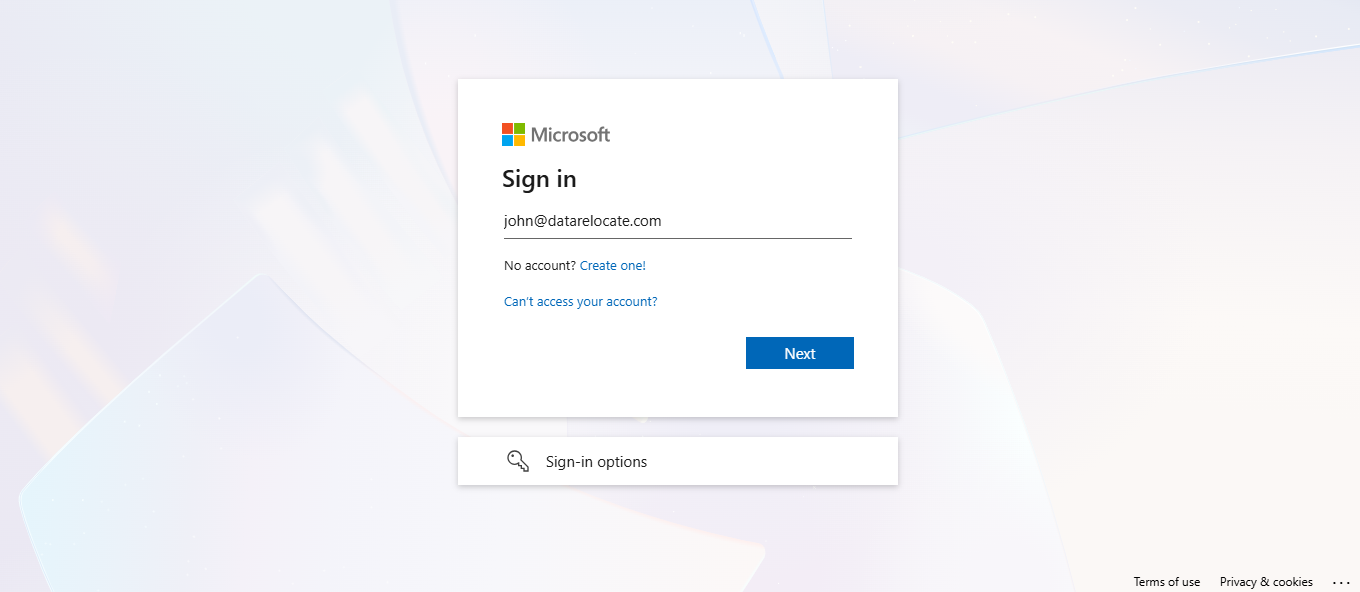
Step 6: Authenticate OneDrive for Business
Finish target authorization for the tenant that owns the target OneDrive accounts.

Step 7: Confirm source and target for the job
Set ShareFile as the source and OneDrive for Business as the target. Confirm the pair matches the SOW before you map users.
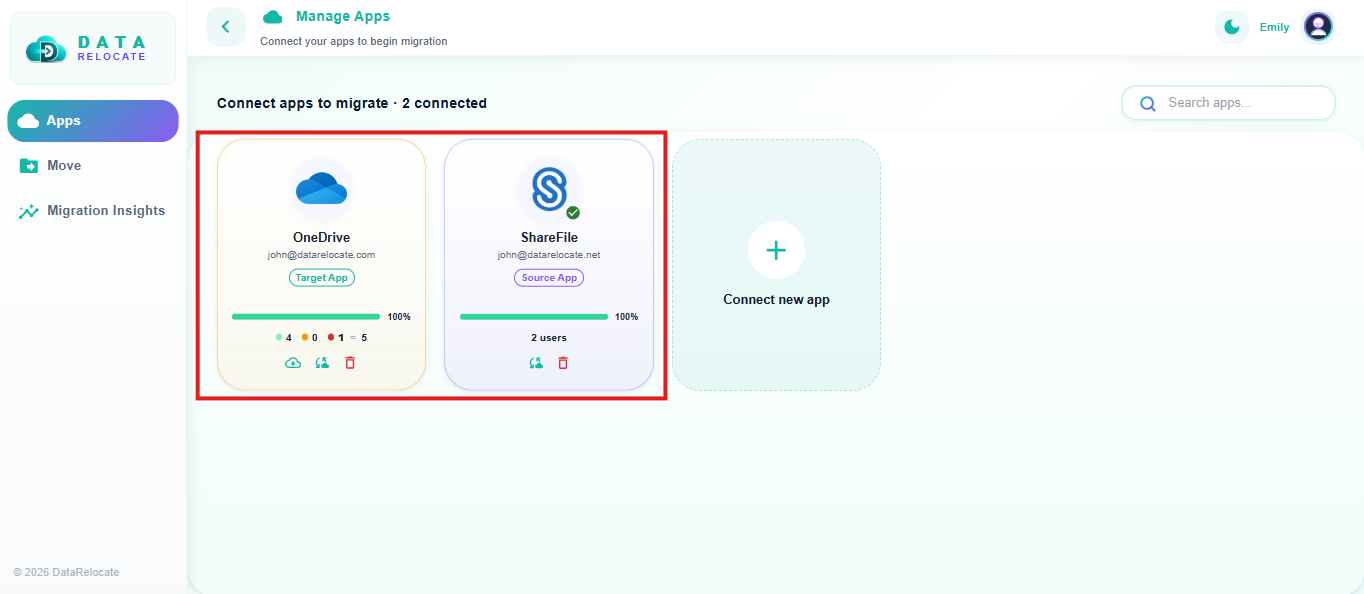
Step 8: Map source and target pairs
Map ShareFile users or personal folders to the OneDrive accounts in your plan. Data Relocate supports auto-fetch and CSV mapping. Use the method that matches your directory.
Step 9: Review selected pairs
Review every source-to-target pair. Download the mapping CSV if you need a second check. Correct mistakes before you continue.
Step 10: Select migration job type
Choose One-Time Migration for the first pass. Run Delta Sync later for files and permission changes made after that pass.
Step 11: Select required features
Using the SOW, select the scopes for this job. Typical scopes are files, folders, versions, permissions, document hyperlinks, comments, and metadata.
Step 12: Preview stage
Use Preview to check the mapping before production. Confirm the CSV. A wrong user mapping is hard to unwind after files land.
Step 13: Start the migration job
When preview succeeds, start the job in Data Relocate.
Step 14: Monitor Migration Insights
Use Migration Insights to track total, in-progress, completed, and failed items. Download the reports. Fix failed paths, then decide if the batch is ready for Delta Sync.
Post-migration validations
Validate before you call the wave done.
1. Migration report validation
Review each batch. Compare completed items with warnings and failures. Note skipped files, start time, and finish time. Clear problem folders before sign-off.
2. File and version validation
Open sample files from the top of a tree and from a deep folder. Compare size, name, and version count with ShareFile. If the target keeps fewer versions than the source, older versions stop at that cap.
3. Folder structure validation
Walk the mapped OneDrive. Confirm parent and child folders match the map. Look for folders that landed under the wrong user.
4. Permission validation
For each test user, check view, edit, and delete. Include one internal user and one external client when sharing is in scope. Confirm a restricted child folder still differs from its parent.
5. Delta Sync validation
After the final Delta Sync, add a test file in ShareFile and confirm it appears in OneDrive. Repeat the check for one permission change on the source.
6. User access and sync validation
Have the owner open OneDrive in a browser and in the sync client if you use one. Microsoft recommends keeping a synced OneDrive near or below 300,000 files for day-to-day sync. Confirm free quota remains after versions land.
7. Security and policy validation
Rebuild retention, sensitivity labels, and sharing policy in Microsoft 365. ShareFile settings do not become those controls. Remove ShareFile access only after this check and the cutover notice.
Best practices for ShareFile to OneDrive for Business migration
- Finish the user-to-OneDrive map before the first production job.
- Split personal folders from shared company trees. Use SharePoint for shared libraries.
- Check OneDrive quotas before you map large personal folders.
- Pilot a deep folder, a long version history, and one external share.
- Invite guests and set tenant sharing before you migrate links that need them.
- Clean blocked file names, paths over 400 characters, and files over 250 GB first.
- Run One-Time Migration, then Delta Sync, before you tell users to leave ShareFile.
- Save Migration Insights reports for failed items and for audit.
Plan your ShareFile to OneDrive for Business move with Data Relocate
Use this checklist with IT and change management before you lock a cutover date.
Data Relocate moves ShareFile files into OneDrive for Business with One-Time Migration, Delta Sync, preview, and Migration Insights. Review the ShareFile to OneDrive for Business migration solution for this path. If shared libraries move in the same program, use the ShareFile to SharePoint Online migration guide. Start from content migration for the full matrix. Use Pricing when you are ready for a quote.
Share user counts, personal folder sizes, SOW scope, and target dates so the quote matches the OneDrive accounts you will use.
Frequently Asked Questions
How long does a ShareFile to OneDrive for Business migration take?
It follows file count, version depth, and Microsoft 365 throttling. Time the pilot user. That number is a better estimate than a generic schedule.
Can people keep working in ShareFile during the migration?
Yes during the first pass. They should keep saving in ShareFile until you announce cutover. Delta Sync copies what they added after that pass.
Do ShareFile permissions match OneDrive sharing roles?
Permissions are in scope. OneDrive stores them with Microsoft 365 sharing and inheritance, not as the five ShareFile switches. Compare view, edit, and delete on the pilot folder before the rest of the account.
What happens to external clients?
Invite them as Microsoft 365 guests first, and allow external sharing on the tenant. A ShareFile client login does not become a Microsoft 365 account on its own.
Are all file versions migrated?
Version history is supported on this path. OneDrive keeps versions only up to the target settings. Confirm those settings before the job if the history matters.
What if a personal folder is larger than the OneDrive quota?
Raise the quota when the license allows, archive or split the tree, or leave overflow on SharePoint. Do not start the production job until free space is confirmed.